SVG vs PNG: Which Format Should You Use? (Complete Comparison)
A complete head-to-head comparison of SVG and PNG formats — learn when to use each, how they differ in quality, size, and performance, and how to convert between them.
On this page
Advertisement
Choosing the right image format can make or break your website's performance, visual quality, and user experience. Two of the most common formats you'll encounter are SVG and PNG — and while they might seem interchangeable at first glance, they serve fundamentally different purposes. Picking the wrong one can result in blurry logos, bloated file sizes, or compatibility headaches.
This guide gives you a clear, definitive answer to the SVG vs PNG debate — with a quick summary up front, a deep dive into each format, a side-by-side comparison table, and practical recommendations for every common use case.
Quick Answer: SVG vs PNG at a Glance
If you're in a hurry, here's the short version:
-
Use SVG for logos, icons, illustrations, charts, diagrams, and any graphics that need to look sharp at any size. SVG is a vector format — it scales infinitely without quality loss and typically has smaller file sizes for simple graphics.
-
Use PNG for photographs, screenshots, complex graphics with many colors and details, and any situation where you need guaranteed pixel-perfect rendering across all platforms. PNG is a raster format — it stores exact pixel data and supports lossless compression with full transparency.
-
Need to convert between them? Use a free tool like svg2img.cc to convert SVG to PNG instantly in your browser — no file upload to servers, completely private.
Now let's explore why these differences matter.
What is SVG?
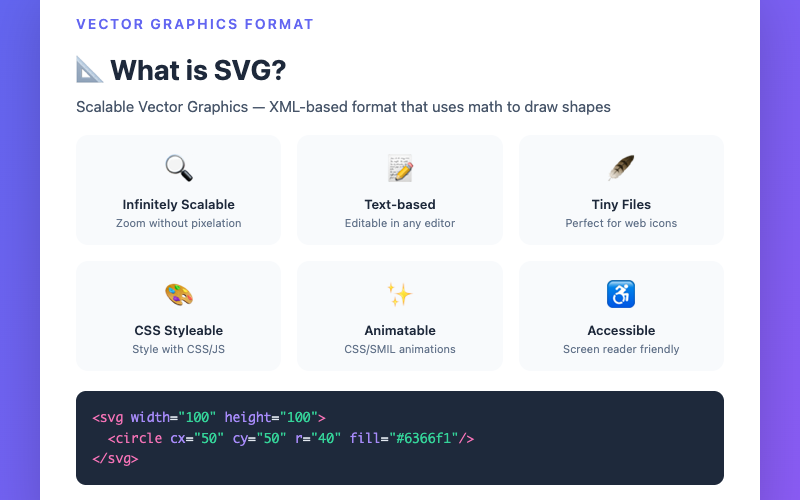
SVG stands for Scalable Vector Graphics. It's an XML-based markup language that describes two-dimensional graphics using mathematical formulas and geometric primitives — lines, curves, shapes, and paths — rather than a grid of individual pixels.
Key Characteristics of SVG
Vector-based: SVG files define images through coordinate geometry. A circle isn't a collection of colored pixels; it's a center point and a radius. This means the image can be scaled to any dimension — from a 16x16 favicon to a billboard-sized print — without any loss of quality whatsoever.
Text-based and editable: Because SVG is written in XML (a text format), you can open an SVG file in any text editor and read or modify its contents. You can change colors, adjust paths, add elements, or remove components without needing specialized graphic design software. This also makes SVG files excellent candidates for version control systems like Git.
Stylable with CSS: SVG elements respond to CSS just like HTML elements. You can change fills, strokes, opacity, and other visual properties using stylesheets, making it easy to maintain consistent branding or create themes.
Scriptable with JavaScript: SVG integrates deeply with the DOM. You can manipulate SVG elements with JavaScript — creating interactive charts, animated icons, data-driven visualizations, and responsive infographics.
SEO-friendly: Search engines can read the text content within SVG files, including titles, descriptions, and any embedded text. This gives SVG an inherent SEO advantage over raster formats, especially for graphics that contain meaningful text.
Compact for simple graphics: A simple icon that might be 5KB as a PNG could be just 500 bytes as an SVG. For graphics with few elements and clean lines, SVG delivers dramatically smaller file sizes.
Supports animation: SVG has built-in animation capabilities through the <animate> element, SMIL, and CSS animations. You can create smooth, resolution-independent animations without resorting to GIF or video files.
SVG Limitations
SVG isn't perfect for everything. Complex images — like photographs or highly detailed illustrations with thousands of color transitions — don't compress well as SVG. In fact, attempting to represent a photograph as SVG would result in a massive file far larger than the equivalent PNG or JPEG. SVG rendering performance can also degrade with extremely complex files containing thousands of elements.
What is PNG?
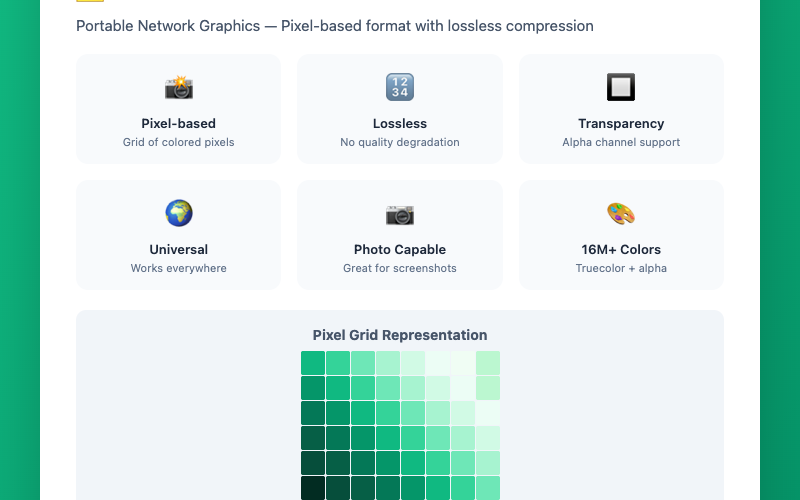
PNG stands for Portable Network Graphics. It was created in 1995 as a superior, patent-free replacement for the GIF format and has since become one of the most widely used image formats on the web.
Key Characteristics of PNG
Raster (bitmap) format: PNG stores images as a grid of individual pixels, each with a specific color value. Unlike SVG's mathematical descriptions, PNG records the exact color of every single pixel in the image. This makes PNG ideal for images with complex color variations and fine details.
Lossless compression: PNG uses lossless compression, meaning no image data is discarded when the file is saved. Every pixel is preserved exactly as it was — no artifacts, no blurring, no quality degradation. This makes PNG the go-to format when image fidelity is paramount.
Full alpha transparency: PNG supports 8-bit transparency (256 levels of opacity), allowing for smooth gradients from fully opaque to fully transparent. This is a significant advantage over formats like JPEG (which has no transparency support) and GIF (which supports only 1-bit transparency — each pixel is either fully transparent or fully opaque).
Wide color depth: PNG supports several color depths, including 8-bit (256 colors with palette), 24-bit (truecolor — 16.7 million colors), and 32-bit (truecolor + alpha channel). The PNG-24 and PNG-32 variants can represent virtually any color the human eye can distinguish.
Universal compatibility: PNG is supported by every web browser, image viewer, graphic design application, operating system, and device manufactured in the past two decades. You will never encounter a compatibility issue with PNG.
No animation (PNG): Standard PNG does not support animation. APNG (Animated PNG) is an extension that adds animation support, and it's supported by most modern browsers, but it's not part of the original PNG specification.
PNG Limitations
PNG files tend to be significantly larger than JPEG files for photographic content, because lossless compression can't achieve the same dramatic size reductions as lossy compression. For simple graphics like icons and logos, PNG files are usually larger than equivalent SVG files. PNG is also a fixed-resolution format — scaling a PNG beyond its original dimensions produces visible pixelation and blurriness.
SVG vs PNG: Head-to-Head Comparison
Let's put these two formats side by side across every dimension that matters:
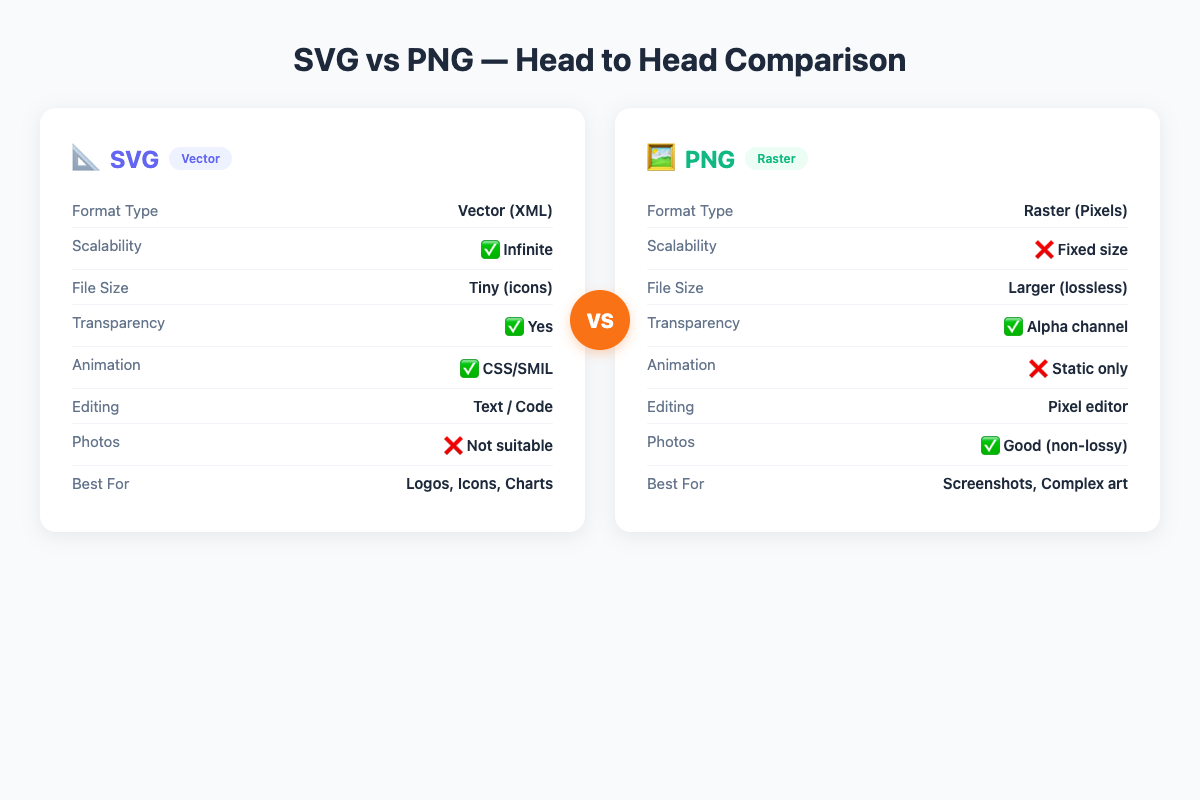
| Feature | SVG | PNG |
|---|---|---|
| Format Type | Vector (XML-based markup) | Raster (bitmap pixel grid) |
| Scalability | Infinite — no quality loss at any size | Fixed resolution — degrades when scaled up |
| File Size (simple graphics) | Very small (often under 1KB for icons) | Moderate (typically 2-10KB for icons) |
| File Size (complex images) | Can be extremely large or impractical | Consistent and predictable |
| Transparency | Full support via fill opacity and clip paths | Full 8-bit alpha channel (256 opacity levels) |
| Animation | Native support (SMIL, CSS, JS animations) | Not supported in standard PNG (APNG is limited) |
| Editing | Text-editor friendly, CSS styleable, JS manipulable | Requires image editing software |
| Browser Support | All modern browsers (IE9+) | Universal (all browsers, all devices) |
| Print Quality | Excellent at any resolution | Depends on original resolution; needs high DPI |
| SEO Impact | Text is indexable; inline SVG improves page structure | Alt text only; no internal content indexing |
| Compression | GZIP (text compression) | Lossless PNG compression |
| Color Depth | Unlimited (defined in code) | Up to 32-bit (16.7M colors + alpha) |
| Photographic Content | Not suitable | Excellent |
| Accessibility | ARIA attributes, readable text | Alt text and surrounding context only |
| Loading Performance | Small files load fast; complex SVGs can render slowly | Consistent decode speed; larger files take longer to load |
When to Use SVG
SVG is the clear winner in these scenarios:
1. Logos and Brand Marks
Your logo needs to look perfect everywhere — on a tiny mobile screen, a large desktop monitor, a business card, and a billboard. SVG guarantees crisp edges at every size. A PNG logo would need to be exported at multiple resolutions (1x, 2x, 3x) to achieve the same result, and even then, it's never truly future-proof.
2. Icons and Icon Sets
UI icons are typically simple shapes with limited colors — exactly the type of graphic where SVG excels. An SVG icon set can be a single sprite file that you style with CSS, reducing HTTP requests and making it trivial to change colors across your entire application. File sizes are often dramatically smaller than PNG equivalents.
3. Illustrations and Line Art
Flat design illustrations, technical diagrams, flowcharts, and line art are all perfect candidates for SVG. These graphics typically use clean lines, solid colors, and geometric shapes — all of which SVG represents efficiently and precisely.
4. Data Visualizations and Charts
Interactive charts, graphs, and dashboards benefit enormously from SVG. Because SVG elements live in the DOM, you can attach event listeners, tooltips, hover effects, and real-time data updates. Major charting libraries like D3.js, Chart.js, and Recharts use SVG for exactly this reason.
5. Animated Graphics
SVG animations are resolution-independent and typically much smaller than GIF or video alternatives. Loading spinners, animated icons, micro-interactions, and decorative animations all work beautifully as SVG. You can use CSS animations, SMIL, or JavaScript — whichever fits your workflow.
6. Responsive Design Elements
In a responsive web environment where your graphics need to adapt to countless screen sizes and pixel densities, SVG eliminates the need for multiple image files. One SVG file serves every breakpoint and device.
7. Print-Ready Graphics
SVG's vector nature means it outputs at the maximum resolution of whatever device renders it — including high-DPI print setups. For any graphic destined for both screen and print, SVG is the ideal source format.
When to Use PNG
PNG is the better choice in these situations:
1. Photographs and Photorealistic Images
If your image is a photograph or contains photorealistic elements with complex color gradients, PNG is the appropriate choice (though JPEG may be even better if transparency isn't needed). SVG cannot efficiently represent the millions of subtle color variations in a photograph.
2. Screenshots
Screenshots are pixel-perfect captures of what's on screen. PNG preserves every pixel exactly, making it the standard format for screenshots. The pixel-based nature of screenshots means there's no benefit to vector representation.
3. Complex Digital Art and Textured Graphics
Images with rich textures, noise patterns, watercolor effects, or thousands of fine details are better served by PNG. These elements don't compress well as vector paths and would result in impractically large SVG files.
4. When You Need Guaranteed Compatibility
While SVG has excellent browser support today, there are still contexts where PNG is the safer bet — email templates, certain CMS platforms, older software, and some social media platforms that don't accept SVG uploads.
5. Decorative Images with Transparency
If you need a complex decorative image with smooth transparency — like a product photo with a transparent background or a watermark overlay — PNG with its 8-bit alpha channel gives you smooth, high-quality transparency.
6. High-DPI Raster Graphics
When you have a raster graphic that needs to look crisp on retina/high-DPI displays, export it as a PNG at 2x or 3x resolution. While SVG would be ideal, sometimes you only have raster source material, and PNG preserves it perfectly.
Converting Between SVG and PNG
Sometimes you need both formats — an SVG for your website and a PNG for a platform that doesn't support SVG uploads, or a PNG for a print service that requires raster files. Conversion between these formats is straightforward.
SVG to PNG Conversion
Converting SVG to PNG is the most common direction, since many platforms (social media, email clients, some CMS systems) don't support SVG uploads. When converting SVG to PNG, you need to choose:
- Output dimensions: Since PNG is a fixed-resolution format, you need to specify the pixel dimensions. For web use, 2x or 3x the display size ensures crisp rendering on retina displays.
- Background color: SVG supports transparency, and you can choose whether your PNG output should have a transparent background or a solid fill.
- Quality settings: PNG is lossless, so quality isn't typically a concern, but choosing the right color depth (8-bit vs 24-bit vs 32-bit) affects file size and transparency support.
The easiest way to convert SVG to PNG is using a free online tool like svg2img.cc. Simply paste your SVG code or drag your SVG file into the tool, choose your desired output settings, and download the PNG — all processing happens directly in your browser with no file uploads to external servers, keeping your data completely private.
PNG to SVG Conversion
Converting PNG to SVG (vectorization) is more complex. It requires tracing the raster image to identify shapes, lines, and paths that can be represented mathematically. This process works well for simple graphics with clean edges but produces poor results for photographs and complex images.
For best results with PNG to SVG conversion, consider:
- Using manual tracing in a vector editor (Adobe Illustrator, Inkscape) for critical assets
- Using automated tracing tools for simple graphics
- Recreating the graphic from scratch in SVG when possible — this always produces the cleanest, smallest files
SVG and PNG in Modern Web Development
Both SVG and PNG play important roles in the modern web stack. Here's how they fit into common workflows:
Performance optimization: Use SVG wherever possible for UI elements to minimize page weight. Complement with PNG for photographic content. Modern build tools like Webpack and Vite can automatically optimize both formats.
Responsive images: SVG is inherently responsive. For PNG images, use the srcset attribute and provide multiple resolutions for different screen densities.
Accessibility: SVG allows you to embed <title> and <desc> elements, add ARIA roles, and include readable text — making your graphics accessible to screen readers. For PNG images, always provide descriptive alt text.
Progressive loading: SVG files can be inlined directly in HTML, eliminating an HTTP request. For PNG files, consider lazy loading for images below the fold.
Frequently Asked Questions
Is SVG always better than PNG?
No. SVG is superior for logos, icons, illustrations, and any graphic that needs to scale. But PNG is better for photographs, screenshots, and complex images with many colors. Each format has its strengths — the key is matching the format to the content.
Can PNG be converted to SVG without quality loss?
Not perfectly. Converting a raster image (PNG) to a vector format (SVG) requires tracing, which is an approximation. Simple graphics with clean edges can be traced accurately, but photographs and complex images will lose detail. For best results, always create vector graphics directly in SVG.
Why is my SVG file larger than my PNG file?
This usually happens when the SVG contains embedded raster images (via <image> tags), overly complex paths with thousands of points, or unnecessary metadata. Try optimizing your SVG by simplifying paths, removing unused elements, and using tools like SVGO to strip unnecessary data.
Does SVG support transparency like PNG?
Yes. SVG supports full transparency through fill opacity, stroke opacity, and clip paths. In fact, SVG transparency is resolution-independent, while PNG transparency is defined per-pixel. Both formats handle transparency excellently, though they implement it differently.
Which format loads faster on a website?
It depends on the content. For simple icons and logos, SVG files are typically much smaller and load faster. For photographs, PNG files will be large — JPEG would be a better choice for photographic content where speed is critical. SVG can also be inlined in HTML, saving an HTTP request entirely.
Can I animate SVG like I can animate PNG (APNG)?
SVG has far more powerful animation capabilities than APNG. SVG supports CSS animations, SMIL animations, and JavaScript-driven animations — all resolution-independent and typically with smaller file sizes than APNG equivalents. APNG is essentially an animated image sequence, while SVG animation is procedural and interactive.
Is SVG good for SEO?
Yes, SVG has natural SEO advantages. Inline SVG content can be read by search engines, SVG text is indexable, and SVGs can include structured metadata (title, description). For image search optimization, SVG graphics with descriptive filenames and alt text can improve your search visibility.
How do I convert SVG to PNG for free?
You can use svg2img.cc — a free, browser-based SVG to image converter. It processes everything locally in your browser (no file uploads to external servers), supports multiple output formats, and lets you customize dimensions and background settings. It's fast, private, and completely free.
Summary
The SVG vs PNG question isn't about which format is objectively better — it's about choosing the right tool for the job:
-
Choose SVG when you need scalability, small file sizes for simple graphics, CSS/JS interactivity, animation, and SEO benefits. SVG is ideal for logos, icons, illustrations, charts, and any graphic that needs to look perfect at every size.
-
Choose PNG when you need pixel-perfect raster images, photographs, screenshots, complex art with many colors, full alpha transparency, and guaranteed universal compatibility.
-
Need to convert? Use svg2img.cc for free, private, browser-based SVG to PNG conversion — no server uploads, no sign-up required.
Understanding the strengths and limitations of both formats empowers you to make the right choice for every image in your project, optimizing both visual quality and performance.
Put the guide into practice
Convert SVG files locally in your browser without uploading them.
Open converter