
Complete Guide to Image Formats: PNG, JPG, WebP, AVIF - Which One to Choose?
Choosing the right image format feels like it should be simple — you have an image, you save it in some format, done. But that simple choice cascades through every page load, affects your SEO rankings, impacts user experience, and ultimately influences whether visitors stay or leave. Understanding image formats isn't just technical trivia; it's a core skill for anyone building on the web.
The good news: once you understand the fundamental tradeoffs, the right choice becomes intuitive. This guide will give you that understanding.
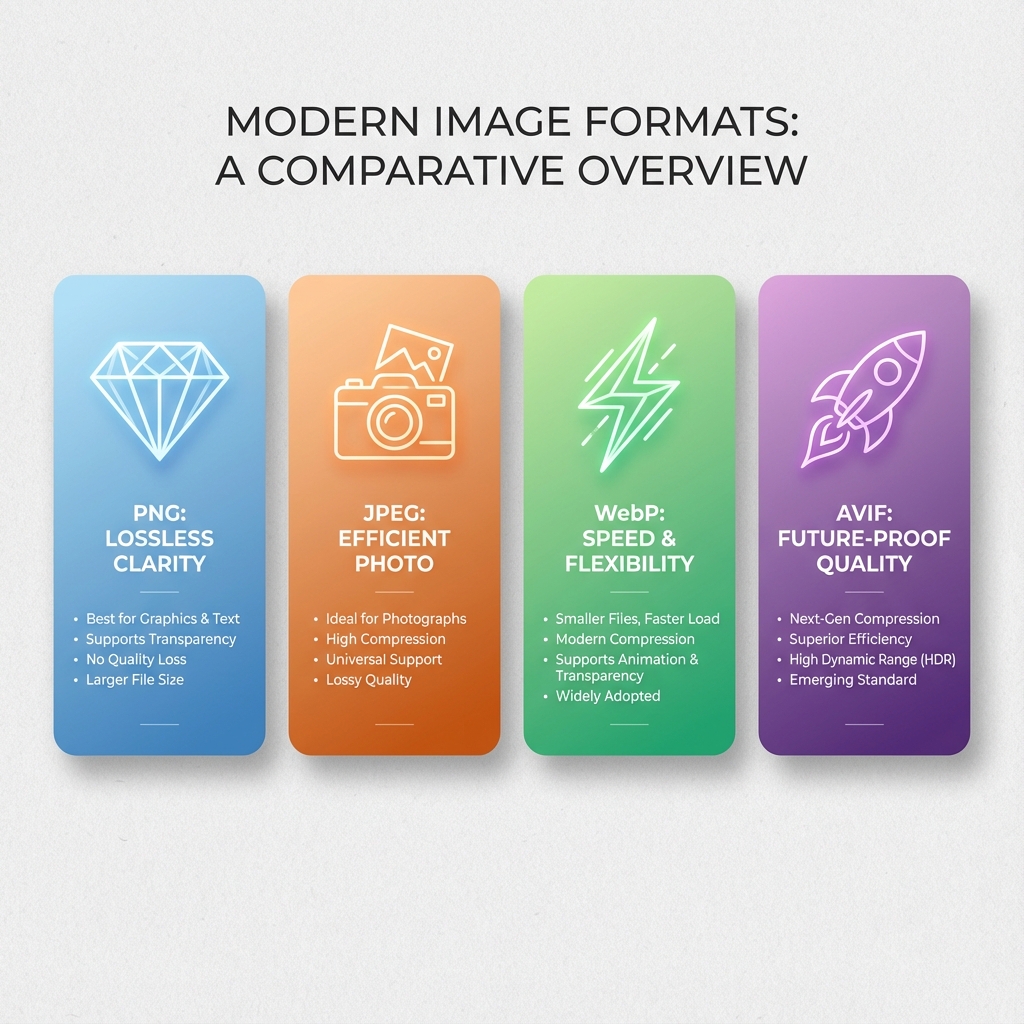
> The Core Tradeoff: Quality vs. Size vs. Compatibility
Every image format makes different choices along three axes. Compression quality determines how faithfully the format preserves your original image's appearance. File size affects how quickly images load and how much bandwidth you consume. Compatibility determines which browsers and applications can display your images.
No format wins on all three dimensions. PNG preserves quality perfectly but creates large files. JPEG compresses aggressively but loses detail. WebP and AVIF offer amazing compression but require fallback strategies for older browsers.
Your job is matching the format to the content and context. A product photo has different requirements than a company logo. A hero image on your homepage matters more than a thumbnail in a comment section.
> PNG: The Precision Champion
PNG emerged in the 1990s as a patent-free replacement for GIF, and it quickly found its niche: images where every pixel matters. When you save a PNG, you get back exactly what you put in — no approximation, no quality loss, just a perfect copy at a smaller file size.
This lossless compression makes PNG the obvious choice for graphics with sharp edges, text, and flat colors. Company logos, UI elements, icons, screenshots — anywhere precision matters, PNG delivers. Its full alpha channel support enables smooth transparency gradients, not just the binary "visible or invisible" that GIF offered.
The cost is file size. PNG files for photographs balloon to megabytes because the format wasn't designed for continuous-tone imagery. Every subtle color gradient gets preserved exactly, even when the human eye couldn't distinguish a slight simplification.
When PNG makes sense: You're working with logos, icons, text overlays, or any graphic where crispness matters more than file size. You need transparency with smooth edges. You're archiving images where quality preservation is paramount.
When to look elsewhere: Photographs, complex artwork, or any scenario where bandwidth matters. A 500KB PNG photograph could become a 50KB JPEG with negligible visible difference.
> JPEG: The Compression Pioneer
JPEG revolutionized digital photography by understanding something fundamental about human vision: we don't see everything equally. Our eyes are more sensitive to brightness changes than color shifts, and we don't notice fine detail as much as we notice overall structure.
JPEG exploits these quirks through lossy compression. It analyzes your image, identifies what you'd notice if changed, and prioritizes preserving those elements while simplifying the rest. The result: photographs that look nearly identical to the original at a fraction of the file size.
The quality slider lets you choose your tradeoff. At 90% quality, most photographs look indistinguishable from the original while being 10x smaller. At 60% quality, you'll see artifacts around sharp edges, but the file might be 50x smaller. Finding the right balance is an art — the goal is the smallest file where compression artifacts remain invisible to users.
JPEG's limitation is its lack of transparency support and its struggle with sharp edges. Text, logos, and UI elements develop visible "ringing" artifacts around high-contrast boundaries. For these use cases, PNG remains superior despite larger files.
When JPEG makes sense: Photographs, paintings, complex artwork — anything with continuous tones and gradients. Hero images, product photos, portraits, landscapes — anywhere the content is photographic and transparency isn't needed.
When to look elsewhere: Logos, icons, screenshots, or images with text. Anything requiring transparency. Situations where you'll edit the image repeatedly (each save degrades quality).
> WebP: The Modern All-Rounder
WebP arrived in 2010 as Google's answer to the format fragmentation problem. Rather than choosing between PNG for quality or JPEG for size, WebP offers both — a single format that handles photographs and graphics, transparency and animation, lossy and lossless compression.
The compression improvements are substantial. In lossy mode, WebP typically produces files 25-35% smaller than JPEG at equivalent quality. In lossless mode, it beats PNG by similar margins. For animated content, WebP dramatically outperforms GIF with better quality and smaller files.
Browser support has finally reached critical mass. Chrome, Firefox, Safari, and Edge all support WebP, covering over 96% of users globally. The remaining gaps — older Safari versions, ancient Android browsers — can be handled with fallback strategies.
When WebP makes sense: New projects without legacy constraints. Any image type where performance matters. Animated content that would otherwise use GIF. When you want one format that handles everything.
When to look elsewhere: Email marketing (client support varies), integration with systems requiring JPEG or PNG, or when you can't implement fallback strategies.
> AVIF: The Compression Frontier
AVIF represents the current cutting edge of image compression, derived from the AV1 video codec. Its compression efficiency exceeds even WebP — typically 20% smaller files at equivalent quality, with particularly dramatic improvements on photographs and high-resolution content.
The quality-to-size ratio is remarkable. Images that would measure 100KB in JPEG might be 40KB in AVIF with no visible difference. For bandwidth-constrained applications and performance-obsessed teams, AVIF offers capabilities that no other format matches.
Browser support is the constraint. As of 2024, Chrome, Firefox, and Edge offer full support, but Safari's support is partial, and mobile Safari lags further. This means AVIF requires careful fallback implementation — it's the progressive enhancement layer atop WebP or JPEG, not a standalone solution.
Encoding speed also matters for some workflows. AVIF encoding is computationally expensive, making on-the-fly conversion impractical for large-scale operations without proper infrastructure.
When AVIF makes sense: Performance-critical applications where you can implement proper fallbacks. High-resolution photography where compression savings are substantial. Progressive enhancement strategies where AVIF improves experience for supporting browsers without breaking others.
When to look elsewhere: When you need simple, universal compatibility. When you can't implement fallbacks. When encoding speed matters for your workflow.
> Making the Decision: A Practical Framework
Rather than memorizing rules, think through these questions:
What's the content? Photographs suggest JPEG, WebP, or AVIF. Graphics with sharp edges suggest PNG or SVG. Animations suggest WebP, AVIF, or (if you must) GIF.
Is transparency needed? If yes, JPEG is immediately disqualified. PNG, WebP, and AVIF all support alpha channels.
How important is file size? For hero images and above-the-fold content, every kilobyte matters. For below-the-fold thumbnails, optimization is less critical.
What's your browser support requirement? Universal support means JPEG and PNG. Modern browsers mean WebP is safe. Cutting-edge optimization means AVIF with fallbacks.
Can you implement fallbacks? If yes, the <picture> element enables progressive enhancement from AVIF→WebP→JPEG. If no, pick a universally supported format.
> Implementation: The Picture Element Pattern
Modern HTML makes multi-format delivery straightforward:
<picture>
  <source srcset="image.avif" type="image/avif">
  <source srcset="image.webp" type="image/webp">
  <source srcset="image.jpg" type="image/jpeg">
  <img src="image.jpg" alt="Description" loading="lazy">
</picture>
The browser evaluates sources in order, selecting the first format it supports. Users with modern browsers get AVIF's excellent compression; those with older browsers fall back gracefully to JPEG.
This pattern costs nothing for users — browsers download only one format. The only cost is generating and storing multiple versions, which modern build tools and CDNs automate entirely.
> The Vector Exception: When SVG Wins
This guide focuses on raster formats, but one format deserves mention: SVG for vector graphics. Icons, logos, illustrations with flat colors — anything that could be drawn as shapes rather than pixels often belongs as SVG.
SVG offers infinite scalability, minuscule file sizes for simple graphics, and full CSS and JavaScript integration. A logo that's 50KB as PNG might be 2KB as SVG. An icon set that weighs megabytes as raster images might be kilobytes as SVG sprites.
When choosing formats, always ask: could this be vector? If the answer is yes, SVG likely beats every raster option.
> Converting SVG to Raster Formats: A Practical Guide
Sometimes you have an SVG but need a raster image — for social media, email campaigns, or systems that don't support vector graphics. Here's how to convert effectively to each format.
SVG to PNG: Best for Graphics and Icons
PNG is the most common conversion target when you need transparency and crisp edges.
When to choose PNG:
- Icons and logos requiring transparent backgrounds
- Screenshots and graphics with text
- Any image where quality matters more than file size
Conversion tips:
- Export at 2x or 3x the display size for retina screens
- Use 24-bit PNG for full color range, 8-bit for simple graphics
- Our free SVG to PNG converter handles this directly in your browser
SVG to JPG: Best for Photographs and Complex Scenes
JPG works well when your SVG contains photographic elements or when you need maximum compression without transparency.
When to choose JPG:
- Complex illustrations with many gradients
- Images destined for print (with appropriate resolution)
- When file size is critical and transparency isn't needed
Conversion tips:
- Set quality to 80-90% for good balance
- Choose a background color since JPG doesn't support transparency
- Consider dimensions carefully — JPG artifacts are visible at high compression
SVG to WebP: Best for Modern Web Performance
WebP offers the best of both worlds: small file sizes with quality comparable to PNG.
When to choose WebP:
- Modern websites where performance matters
- When you need both transparency and compression
- Animated graphics (WebP supports animation too)
Conversion tips:
- Use lossy compression for photographs, lossless for graphics
- Quality setting of 80% typically matches PNG appearance at 30% smaller size
- Always provide PNG or JPG fallback for older browsers
Quick Conversion Method
The simplest way to convert SVG to any raster format:
- Visit our free converter — no signup, no upload to servers
- Load your SVG by pasting code, uploading a file, or entering a URL
- Set dimensions — specify the exact pixel size you need
- Choose format — PNG for transparency, JPG for photos, WebP for web
- Download — your file converts instantly in your browser
For batch operations or automation, consider command-line tools like ImageMagick or build-time solutions with Sharp (Node.js) or Pillow (Python).
> Looking Forward
The trajectory is clear: compression keeps improving, browsers keep adopting new formats, and the web keeps demanding better performance. AVIF is gaining ground. WebP has become mainstream. JPEG and PNG remain relevant for compatibility but face pressure from better alternatives.
Teams that build flexible image pipelines — generating multiple formats, implementing fallbacks, automating optimization — position themselves to adopt future improvements painlessly. Those locked into single formats will eventually face painful migrations.
The good news: the principles remain stable even as formats evolve. Understanding the tradeoffs between quality, size, and compatibility serves you regardless of which formats dominate tomorrow.
Need to convert between formats? Our free SVG to PNG converter handles transformations directly in your browser. For deeper dives into specific formats, explore our WebP Guide and SVG Complete Guide.