How to Convert SVG to PNG: 7 Easy Methods (2025 Guide)
Complete guide covering 7 methods to convert SVG to PNG, from online tools to command line to programming code.
On this page
Advertisement
SVG and PNG are two of the most widely used image formats on the web, but they serve very different purposes. SVG is perfect for logos, icons, and scalable graphics — yet many platforms, from social media to email clients, still require PNG. If you've ever tried to upload an SVG file to a system that only accepts PNG, you know the frustration.
The good news? Converting SVG to PNG is straightforward once you know your options. This guide walks you through 7 proven methods, ranging from zero-installation online tools to developer-friendly command line utilities. Whether you're a designer, developer, or just someone who needs a quick conversion, there's a method here for you.
In a hurry? Skip the comparison and use our free SVG to PNG converter — it runs entirely in your browser, supports transparent backgrounds and custom export sizes, and never uploads your files.
Why Convert SVG to PNG?
Before diving into the how, let's quickly address the why. SVG is a vector format — it uses mathematical descriptions to render graphics, meaning it scales infinitely without quality loss. PNG, on the other hand, is a raster (bitmap) format that stores images as a grid of pixels.
Here are the most common reasons you might need this conversion:
- Platform compatibility: Many social media platforms (Instagram, Facebook, X/Twitter) and email clients don't support SVG uploads but accept PNG.
- Print requirements: Some print workflows require a rasterized file at a specific resolution (e.g., 300 DPI).
- Embedded systems: Certain applications, embedded devices, or legacy software only handle raster image formats.
- Email signatures: Most email clients strip SVG for security reasons but display PNG without issue.
- Favicon and app icons: While modern browsers support SVG favicons, many older systems still need PNG at specific dimensions.
Method 1: Online Converters (Fastest & Easiest)
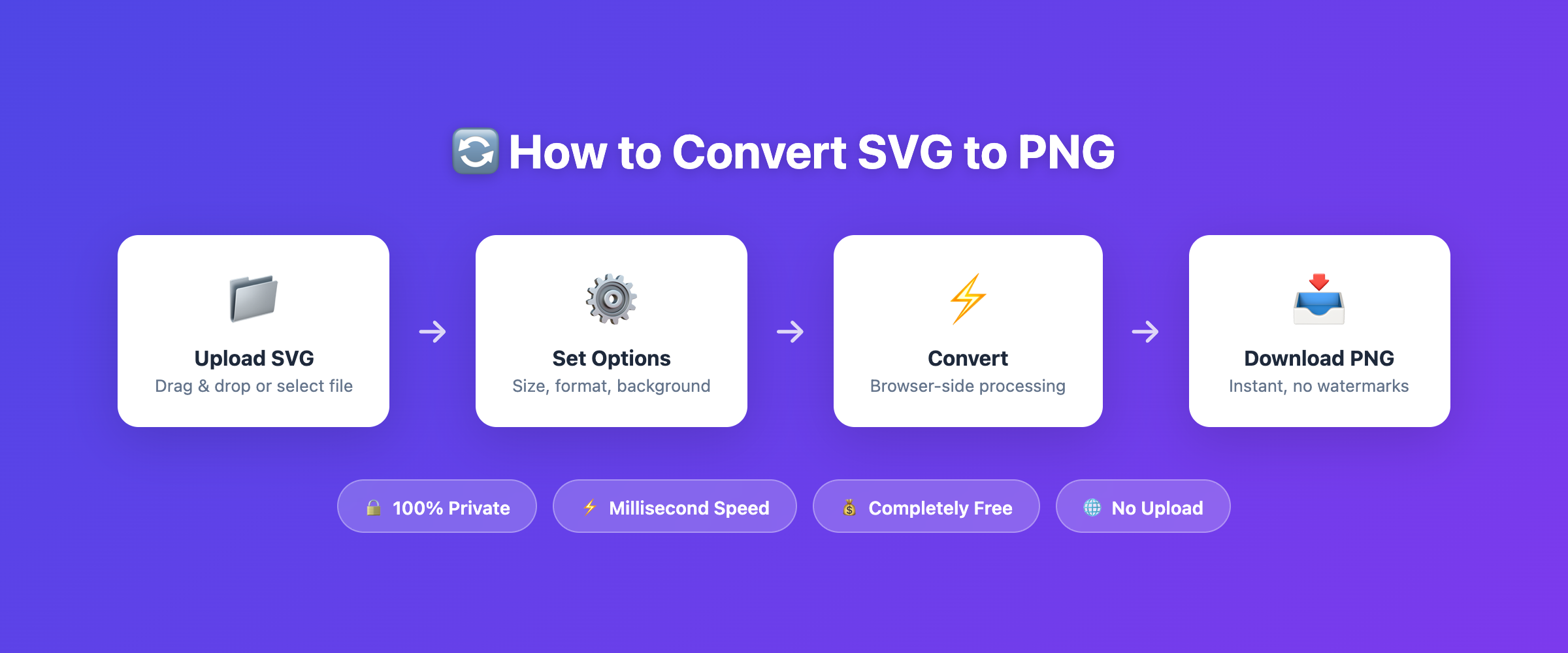
For most people, an online converter is the quickest path from SVG to PNG. You don't need to install anything, and the process takes seconds.
How to Use an Online SVG to PNG Converter
The process is simple:
- Open your browser and navigate to a converter tool.
- Load your SVG file (drag and drop, or browse to select).
- Choose your output settings — dimensions, background color, and quality.
- Click convert and download your PNG.
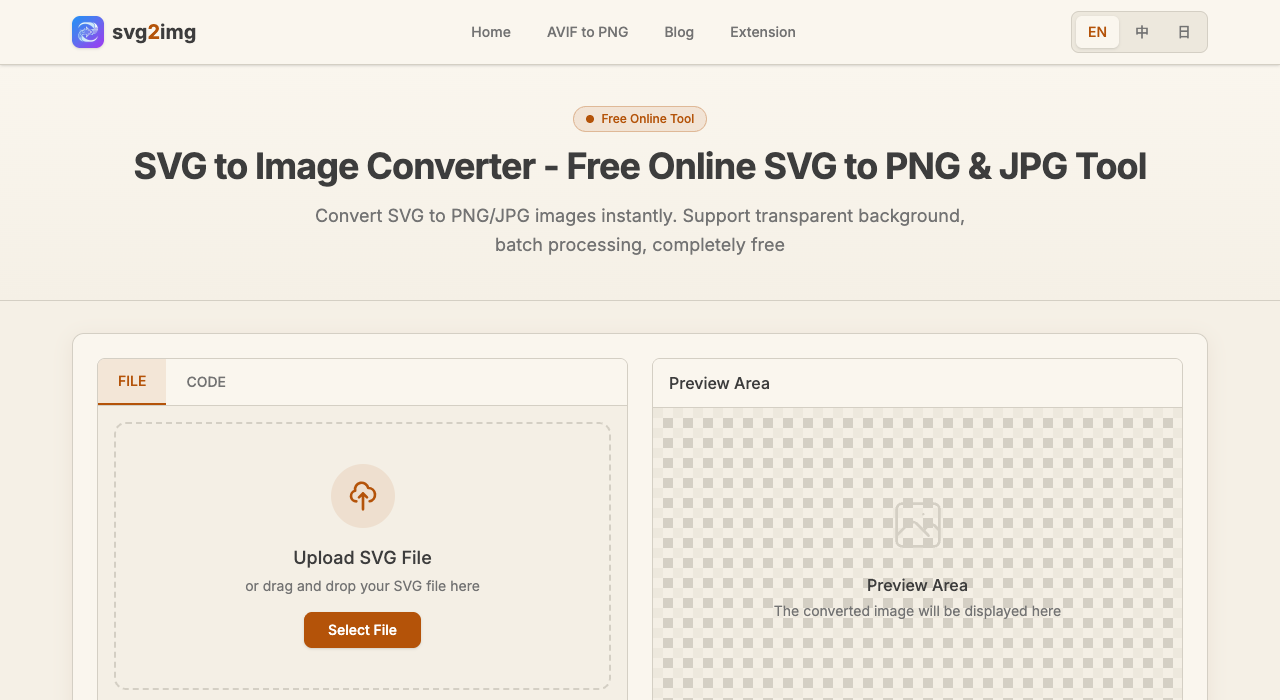
Why We Recommend svg2img.cc
Among online converters, svg2img.cc stands out for one critical reason: your files never leave your browser.
Most online converters work by uploading your file to a remote server, processing it there, and sending the result back. That means your SVG data — which could contain proprietary logos, design assets, or sensitive information — is transmitted over the internet to a third-party server.
svg2img.cc takes a completely different approach. All conversion happens entirely in your browser using client-side JavaScript. No files are uploaded to any server, ever. This means:
- Total privacy: Your designs stay on your computer. Nothing is sent anywhere.
- Instant speed: No upload/download wait times. Conversion happens in milliseconds.
- Works offline: Once the page loads, you can convert files even without internet.
- No file size limits: Server-based tools often restrict uploads to 5–50 MB. Since everything runs locally, you can convert much larger files.
- Free, with no limits: No daily quotas, no watermarks, no premium tiers.
On top of that, svg2img.cc supports output in PNG, JPG, and WebP, lets you set custom dimensions and DPI, and gives you control over background color and transparency.
Method 2: Desktop Software (Best for Professionals)
If you work with graphics regularly, desktop software gives you the most control over the conversion process.
Inkscape (Free & Open Source)
Inkscape is a professional-grade vector graphics editor and one of the best free tools for SVG work. Here's how to export SVG to PNG:
- Open your SVG file in Inkscape.
- Go to File → Export PNG Image (or press
Ctrl+Shift+E). - In the export panel, choose your export area:
- Page: exports the entire canvas.
- Drawing: exports only the content, trimming whitespace.
- Selection: exports only selected objects.
- Set the desired width, height, or DPI.
- Click Export.
Inkscape gives you fine-grained control over DPI, export area, and even supports batch export via the command line.
Adobe Illustrator
For Creative Cloud subscribers, Illustrator offers a polished export workflow:
- Open the SVG file in Illustrator.
- Go to File → Export → Export As...
- Choose PNG as the format.
- In the PNG options dialog, select:
- Color mode: RGB for screen, CMYK for print.
- Resolution: Screen (72 PPI), Medium (150 PPI), High (300 PPI).
- Background: Transparent or White.
- Anti-aliasing: Type Optimized or Art Optimized.
- Click OK to export.
Other Desktop Options
- GIMP: The free raster editor can open SVG files (via an Inkscape extension) and export as PNG.
- Affinity Designer: A paid alternative to Illustrator with robust SVG/PNG export options.
- macOS Preview: On Mac, you can open SVG files in Preview and use File → Export to save as PNG — though the rendering quality may vary.
Method 3: Command Line Tools (Best for Automation)
For developers and power users who need to convert SVG files in bulk or as part of an automated workflow, command line tools are the way to go.
ImageMagick
ImageMagick is a versatile image processing suite available on Linux, macOS, and Windows:
# Basic conversion
convert input.svg output.png

# Specify dimensions
convert -width 1024 -height 768 input.svg output.png

# Set density for SVGs that use physical units
convert -density 300 input.svg output.png

# Batch convert all SVGs in a directory
for f in *.svg; do convert "$f" "${f%.svg}.png"; done
Note: ImageMagick uses an internal SVG renderer that may not perfectly match browser rendering, especially for complex CSS-styled SVGs.
rsvg-convert (librsvg)
rsvg-convert is often preferred over ImageMagick for SVG conversion because it uses the same rendering engine (librsvg) that GNOME and other Linux desktop environments use:
# Basic conversion
rsvg-convert -w 1024 -h 768 input.svg -o output.png

# Set DPI
rsvg-convert -d 300 -p 300 input.svg -o output.png

# Batch conversion
for f in *.svg; do rsvg-convert -w 1920 "$f" -o "${f%.svg}.png"; done
Install on Ubuntu/Debian: sudo apt install librsvg2-bin
Install on macOS: brew install librsvg
CairoSVG (Python)
CairoSVG is a Python-based SVG converter that produces high-quality output and handles complex SVG features well:
# Install
pip install cairosvg

# Basic conversion
cairosvg input.svg -o output.png

# Scale to specific dimensions
cairosvg input.svg -o output.png --output-width 1024 --output-height 768

# Set DPI
cairosvg input.svg -o output.png --dpi 300
Method 4: Browser Developer Tools (Quick Hack)
If you just need a quick one-off conversion and don't want to use any external tool, your browser's built-in developer tools can do the job.
Steps for Chrome/Edge/Firefox:
- Open the SVG file directly in your browser (drag it into a tab, or use
Ctrl+O). - Right-click on the page and select Inspect (or press
F12). - Select the
<svg>element in the DOM inspector. - Press
Ctrl+Cto copy the element. - Open the Console tab.
- Paste and run the following code:
// Create a canvas and draw the SVG onto it
const svgString = '<svg><!-- paste your SVG code here --></svg>';
const canvas = document.createElement('canvas');
canvas.width = 1024;
canvas.height = 1024;
const ctx = canvas.getContext('2d');
const img = new Image();
const blob = new Blob([svgString], { type: 'image/svg+xml' });
const url = URL.createObjectURL(blob);
img.onload = function () {
  ctx.drawImage(img, 0, 0, 1024, 1024);
  const pngUrl = canvas.toDataURL('image/png');
  const a = document.createElement('a');
  a.href = pngUrl;
  a.download = 'output.png';
  a.click();
  URL.revokeObjectURL(url);
};
img.src = url;
Admittedly, this is a bit hacky — but it works in a pinch and requires zero installation. For a more streamlined browser-based experience, tools like svg2img.cc handle this entire process with a polished interface.
Method 5: Design Tools (Figma, Canva, Sketch)
If you're already working in a design tool, you can export SVG to PNG without leaving your workflow.
Figma
Figma has become the go-to design tool for many teams, and its SVG/PNG export is straightforward:
- Import your SVG file into a Figma project (drag and drop onto the canvas).
- Select the frame or element you want to export.
- In the right sidebar, scroll to the Export section.
- Click the + button to add an export setting.
- Choose PNG as the format.
- Set the export scale (1x, 2x, 3x, 4x) or enter a custom width.
- Click Export and choose where to save the file.
Figma also supports exporting multiple sizes at once — useful for generating @1x, @2x, and @3x variants for mobile development.
Canva
Canva is incredibly popular for social media and marketing design:
- Create a new design or open an existing one.
- Upload your SVG file via the Uploads tab in the left panel.
- Add the SVG to your canvas.
- Click Share → Download in the top right.
- Select PNG as the file type.
- Choose your desired quality settings.
- Click Download.
Note: Canva's free tier has some export restrictions. For unlimited, high-resolution exports, a Canva Pro subscription may be needed.
Sketch (macOS Only)
For Mac users in the Sketch ecosystem:
- Open the SVG file in Sketch.
- Select the artboard or layer you want to export.
- In the Inspector panel, click Make Exportable.
- Set the format to PNG and choose your scale factor.
- Click Export Selected.
Method 6: Programming (JavaScript & Python)
For developers building applications that need SVG-to-PNG conversion, here are programmatic approaches in two popular languages.
JavaScript (Canvas API)
You can convert SVG to PNG entirely in the browser using the Canvas API — this is essentially what browser-based tools like svg2img.cc do under the hood:
async function svgToPng(svgFile, width, height) {
  // Read the SVG file
  const svgText = await svgFile.text();

  // Create an image from the SVG
  const img = new Image();
  const svgBlob = new Blob([svgText], { type: 'image/svg+xml;charset=utf-8' });
  const url = URL.createObjectURL(svgBlob);

  return new Promise((resolve, reject) => {
    img.onload = () => {
      // Create a canvas with desired dimensions
      const canvas = document.createElement('canvas');
      canvas.width = width;
      canvas.height = height;
      const ctx = canvas.getContext('2d');

      // Draw the SVG image onto the canvas
      ctx.drawImage(img, 0, 0, width, height);

      // Convert canvas to PNG blob
      canvas.toBlob((blob) => {
        URL.revokeObjectURL(url);
        resolve(blob);
      }, 'image/png');
    };
    img.onerror = reject;
    img.src = url;
  });
}

// Usage
const fileInput = document.querySelector('input[type="file"]');
fileInput.addEventListener('change', async (e) => {
  const file = e.target.files[0];
  const pngBlob = await svgToPng(file, 2048, 2048);
  const downloadUrl = URL.createObjectURL(pngBlob);
  const a = document.createElement('a');
  a.href = downloadUrl;
  a.download = 'output.png';
  a.click();
});
This approach is powerful because, like svg2img.cc, it runs entirely on the client side — no server required.
Python (CairoSVG)
For server-side or automated batch processing, Python with CairoSVG is a robust combination:
import cairosvg
import os

def convert_svg_to_png(input_path, output_path, width=None, height=None, dpi=300):
    """Convert a single SVG file to PNG."""
    kwargs = {'write_to': output_path, 'dpi': dpi}
    if width:
        kwargs['output_width'] = width
    if height:
        kwargs['output_height'] = height
    cairosvg.svg2png(url=input_path, **kwargs)

def batch_convert(input_dir, output_dir, width=1920):
    """Convert all SVG files in a directory to PNG."""
    os.makedirs(output_dir, exist_ok=True)
    for filename in os.listdir(input_dir):
        if filename.endswith('.svg'):
            input_path = os.path.join(input_dir, filename)
            output_path = os.path.join(output_dir, filename.replace('.svg', '.png'))
            convert_svg_to_png(input_path, output_path, width=width)
            print(f"Converted: {filename}")

# Usage
batch_convert('./svg-icons', './png-icons', width=512)
Method 7: Browser Extensions
If you frequently encounter SVG files on the web and want to save them as PNG on the fly, browser extensions offer a convenient one-click solution.
Popular Extensions
- SVG Export (Chrome/Firefox): Extracts SVG elements from any webpage and lets you export them as PNG at various scales.
- Save SVG as PNG (Chrome): Adds a right-click context menu option to save any SVG element as a PNG file.
- SVG Gobbler (Chrome): Finds all SVGs on a page (inline, background images, CSS) and provides export options.
Limitations to Keep in Mind
Browser extensions are handy but have some drawbacks:
- They may not handle complex SVGs with external resources (fonts, linked images) correctly.
- Resolution options are sometimes limited.
- Security-conscious users may prefer not to grant extensions access to page content.
- Extensions can break when browsers update.
For occasional use, extensions are fine. For reliable, privacy-respecting conversions, a dedicated tool like svg2img.cc remains the better choice.
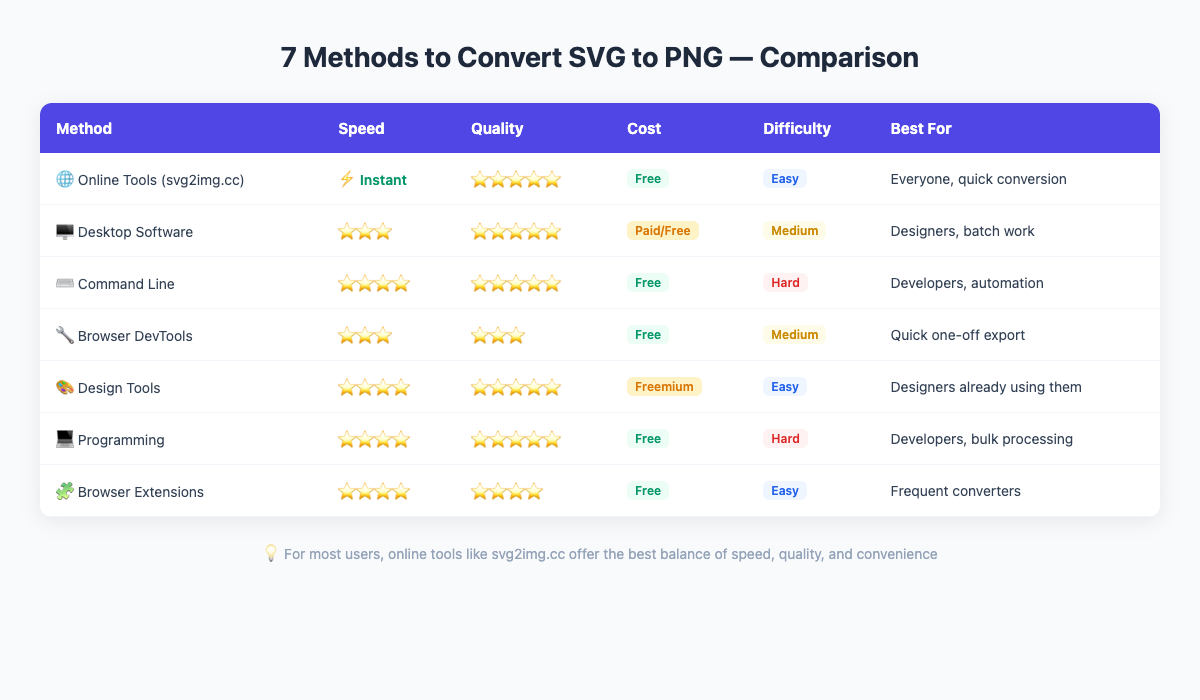
Comparison Table: Which Method Should You Use?
| Method | Best For | Cost | Privacy | Speed | Quality Control |
|---|---|---|---|---|---|
| Online Tools (svg2img.cc) | Quick, one-off conversions | Free | Excellent (client-side) | Instant | High |
| Desktop Software | Professional design work | Free–Paid | Excellent | Fast | Very High |
| Command Line | Automation & batch processing | Free | Excellent | Fast | High |
| Browser Dev Tools | Quick hacks, one-time use | Free | Excellent | Slow | Limited |
| Design Tools | Design workflow integration | Free–Paid | Good | Fast | High |
| Programming | App integration, custom pipelines | Free | Excellent | Varies | Full Control |
| Browser Extensions | Casual, in-page extraction | Free | Moderate | Fast | Limited |
Tips for Better SVG to PNG Conversion
Regardless of which method you choose, these tips will help you get the best results:
1. Choose the Right Resolution
For web use, choose the right pixel dimensions first. DPI metadata does not make a 400 px PNG sharper on screen; exporting 800 px for a 400 px HiDPI display does. For print, calculate pixels from the physical print size and target DPI. A common mistake is converting at the SVG's native dimensions without scaling up, resulting in a tiny, low-resolution PNG.
2. Handle Transparency Correctly
SVG files often have transparent backgrounds. When converting to PNG, make sure transparency is preserved (PNG supports it natively). If you need a solid background, add it explicitly during the conversion step.
3. Watch Out for Text and Fonts
If your SVG contains text with web fonts or custom fonts, the converted PNG might render the text incorrectly if those fonts aren't available on the system performing the conversion. Always embed fonts in the SVG or convert text to outlines before conversion.
4. Check for External Resources
Some SVGs reference external stylesheets, images, or fonts. These references may break during conversion, especially with command line tools. Ensure all resources are embedded within the SVG file for the most reliable results.
5. Test at Multiple Sizes
Convert at several dimensions (e.g., 1x, 2x, 4x) and verify the output looks correct at each size. This is especially important for icons and logos that will be displayed at various scales.
FAQ
Can I convert SVG to PNG without losing quality?
Yes — since SVG is a vector format, you can render it at any pixel size when converting to PNG. For print, calculate the pixel size from the physical dimensions and target DPI. For web, 2x the display size for Retina/HiDPI screens is a good rule of thumb.
Is it safe to use online SVG to PNG converters?
It depends on the tool. Many online converters upload your file to a server for processing, which means your data passes through a third party. svg2img.cc is different — it processes everything locally in your browser, so your files never leave your device.
What's the maximum SVG file size I can convert?
With server-based tools, you're often limited to 5–50 MB. Browser-based tools like svg2img.cc don't have this limitation since conversion happens on your device. Command line tools have no practical limit other than your system's memory.
Why does my PNG look different from the SVG?
Common causes include missing fonts (the text renders with a fallback font), unsupported SVG features in the converter's rendering engine, or external resources that weren't embedded in the SVG file. Using a converter with a modern rendering engine (like a browser-based tool) usually gives the most accurate results.
Can I convert multiple SVG files at once?
Yes. Command line tools like rsvg-convert and CairoSVG support batch processing via shell scripts. Desktop software like Inkscape can also batch export. For a no-code approach, you can use command line scripts or write a simple Python loop as shown in Method 6.
Conclusion
Converting SVG to PNG doesn't have to be complicated. Whether you need a quick one-off conversion or a fully automated pipeline, there's a method that fits your workflow:
- For speed and simplicity, browser-based tools are hard to beat.
- For professional quality, desktop software gives you the most control.
- For automation, command line tools are your best friend.
- For integration, programming libraries offer maximum flexibility.
If you just need to convert an SVG file right now, give svg2img.cc a try. It's free, requires no installation, keeps your files private, and handles the conversion entirely in your browser. No sign-up, no upload, no hassle — just drag, convert, and download.
Put the guide into practice
Convert SVG files locally in your browser without uploading them.
Open converter