How to Open SVG Files: 10 Free Ways on Any Device
Complete guide covering 10 free ways to open, view, and edit SVG files across all platforms — browsers, design tools, code editors, online viewers, and mobile apps.
On this page
Advertisement
You just downloaded an SVG file — maybe a logo, an icon, or a vector illustration — and your computer doesn't know what to do with it. Double-clicking opens it in some random app, or worse, nothing happens at all. Sound familiar?
SVG (Scalable Vector Graphics) is one of the most widely used image formats on the web, yet many people struggle to open it. Unlike JPG or PNG, SVG isn't a simple pixel-based image — it's a code-based vector format that not every application handles natively. The good news is that there are plenty of free ways to open SVG files on any device, and this guide covers all 10 of the best ones.
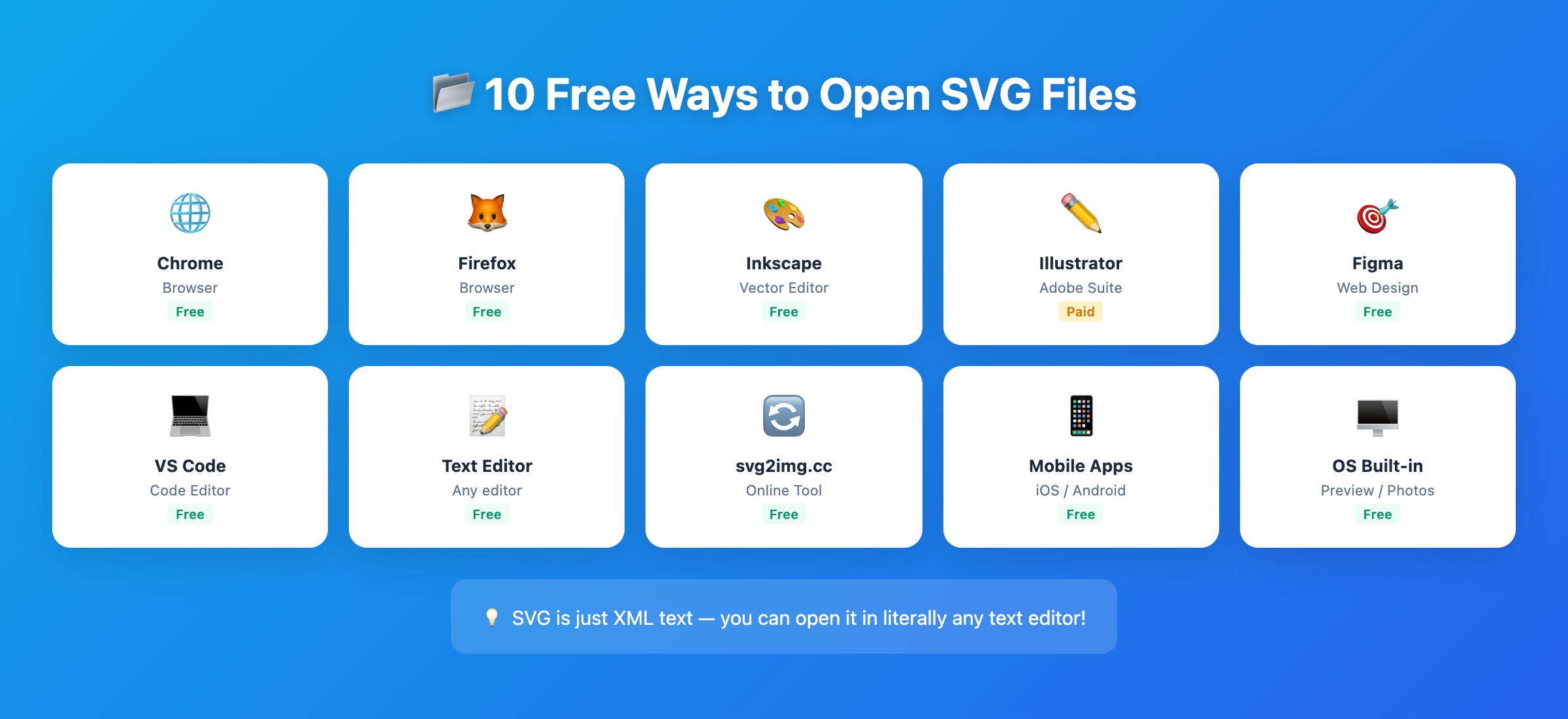
Quick Reference: 10 Ways to Open SVG Files
| # | Method | Platform | Free? | Can Edit? |
|---|---|---|---|---|
| 1 | Web Browsers | All | Yes | No |
| 2 | Inkscape | Win / Mac / Linux | Yes | Yes |
| 3 | Adobe Illustrator | Win / Mac | No (subscription) | Yes |
| 4 | Affinity Designer | Win / Mac | No (one-time) | Yes |
| 5 | Figma | All (web-based) | Yes | Yes |
| 6 | VS Code | Win / Mac / Linux | Yes | Yes (code) |
| 7 | Text Editors | All | Yes | Yes (code) |
| 8 | svg2img.cc | All (web-based) | Yes | View & Convert |
| 9 | Mobile Apps | iOS / Android | Yes | Limited |
| 10 | OS Built-in Viewers | Win / Mac | Yes | No |
Method 1: Web Browsers (Easiest — Just Drag & Drop)
The simplest way to open any SVG file is the web browser you're already using right now. Chrome, Firefox, Edge, and Safari all support SVG natively — no plugins, no extensions, no installation needed.
How to Open SVG in a Browser
- Open your browser (Chrome, Firefox, Edge, or Safari).
- Drag the SVG file from your file explorer and drop it onto a browser tab.
- Alternatively, press
Ctrl+O(Windows/Linux) orCmd+O(Mac) and browse to the file.
That's it. The SVG renders immediately, exactly as it would appear on a web page. You can zoom in and out to inspect details, and since SVG is vector-based, the image stays crisp at any zoom level.
Pros and Cons
Pros:
- Zero setup — you already have a browser installed.
- Perfect rendering quality using the browser's SVG engine.
- Works on Windows, macOS, Linux, and even mobile browsers.
Cons:
- View only — you can't edit the SVG.
- No export or conversion options.
- Large or complex SVGs with animations may not display correctly in all browsers.
Platform: Windows, macOS, Linux, iOS, Android
Method 2: Inkscape (Best Free Editor)
If you need to do more than just view an SVG — if you want to edit paths, change colors, modify text, or export to other formats — Inkscape is the best free option available.
Inkscape is a professional-grade, open-source vector graphics editor that uses SVG as its native file format. This means it opens SVG files with perfect fidelity, supporting the full SVG specification including filters, gradients, clipping paths, and more.
How to Open SVG in Inkscape
- Download and install Inkscape from inkscape.org (available for Windows, macOS, and Linux).
- Launch Inkscape.
- Go to File → Open and select your SVG file, or simply drag the file into the Inkscape window.
From there, you have full editing capabilities — modify shapes, change colors, add text, delete elements, resize the canvas, and export to PNG, PDF, EPS, and other formats.
Pros and Cons
Pros:
- Completely free and open source — no subscriptions, no feature limits.
- Full SVG editing with professional-level tools.
- Cross-platform: Windows, macOS, and Linux.
- Active community with extensive documentation and tutorials.
- Can export to PNG, PDF, EPS, and other formats.
Cons:
- The interface can feel dated compared to modern design tools.
- Performance may lag with very complex SVG files (thousands of elements).
- Learning curve for users new to vector graphics editing.
Platform: Windows, macOS, Linux
Method 3: Adobe Illustrator (Professional Standard)
Adobe Illustrator is the industry standard for vector graphics. If you're a professional designer, chances are you already have it installed as part of your Creative Cloud subscription.
Illustrator has excellent SVG support with robust import and export options. It can handle complex SVG features, convert SVG elements into editable Illustrator paths, and give you access to the full suite of professional design tools.
How to Open SVG in Illustrator
- Open Adobe Illustrator.
- Go to File → Open and select your SVG file.
- The SVG opens as a fully editable document.
You can also use File → Place to embed an SVG into an existing Illustrator document.
Pros and Cons
Pros:
- Industry-standard vector editing tools.
- Excellent SVG import/export with fine-grained control.
- Integrates seamlessly with other Adobe apps (Photoshop, After Effects, etc.).
- Handles complex SVGs with ease.
Cons:
- Requires a Creative Cloud subscription ($20.99/month for Illustrator alone).
- Overkill if you just need to view an SVG.
- Not available on Linux.
Platform: Windows, macOS
Method 4: Affinity Designer (Affordable Alternative)
Affinity Designer by Serif is a powerful vector graphics editor that many consider the best one-time-purchase alternative to Adobe Illustrator. It's gained a strong following among designers who want professional tools without subscription fatigue.
Affinity Designer supports SVG import and export, with a clean, modern interface that's intuitive for both beginners and experienced designers.
How to Open SVG in Affinity Designer
- Open Affinity Designer.
- Go to File → Open and select your SVG file.
- The SVG is imported and fully editable.
You can switch between vector and raster workspaces within the same document, which is useful for SVG files that combine vector shapes with embedded bitmap images.
Pros and Cons
Pros:
- One-time purchase ($69.99) — no subscription required.
- Professional-grade tools rivaling Illustrator.
- Available on Windows, macOS, and iPad.
- Fast performance, even with complex files.
Cons:
- Not free (though much cheaper than Illustrator long-term).
- SVG support is good but occasionally has minor rendering differences.
- No Linux version.
Platform: Windows, macOS, iPad
Method 5: Figma (Free Web-Based Design Tool)
Figma has become the go-to design tool for UI/UX work, and it's free for individual use. It runs entirely in your browser (or as a desktop app), making it accessible from any device.
Figma imports SVG files cleanly and converts them into editable vector layers. You can modify shapes, change colors, adjust typography, and re-export as SVG, PNG, or other formats.
How to Open SVG in Figma
- Open figma.com and sign in (free account).
- Create a new design file or open an existing one.
- Drag and drop your SVG file onto the Figma canvas.
The SVG is immediately rendered and editable. Figma preserves the SVG's structure, converting paths, groups, and layers into native Figma elements.
Pros and Cons
Pros:
- Free for individual use (up to 3 projects).
- Runs in any modern browser — no installation needed.
- Excellent SVG import with full editing capability.
- Real-time collaboration features.
- Available as a desktop app for offline use.
Cons:
- Requires an internet connection for the web version.
- Some advanced SVG features (complex filters, animations) may not import perfectly.
- Free plan has project and version history limits.
Platform: All (web browser), Windows, macOS (desktop app)
Method 6: VS Code with SVG Preview
If you're a developer, you probably already have Visual Studio Code installed. What you might not know is that VS Code can open and preview SVG files with the right extension — and it's also a great way to inspect and edit the underlying SVG code.
How to Open SVG in VS Code
- Install Visual Studio Code (free, open source).
- Install the SVG Preview extension (by Simon Siefke or similar).
- Open an SVG file in VS Code — you'll see the code on the left and a live preview on the right.
This is particularly useful for developers who work with SVG in web projects. You can edit the SVG code directly and see changes reflected in real-time.
Pros and Cons
Pros:
- Free and open source.
- Edit SVG code with syntax highlighting and auto-completion.
- Live preview alongside the code.
- Perfect for developers already using VS Code.
- Rich extension ecosystem for additional SVG tools.
Cons:
- Not a visual design tool — editing is code-based.
- Requires installing an extension for preview.
- Not ideal for non-technical users.
Platform: Windows, macOS, Linux
Method 7: Any Text Editor (Because SVG Is XML)
Here's a fact that surprises many people: SVG files are just plain text. They're XML documents that describe graphics using markup tags. This means you can open any SVG file in any text editor — Notepad, Notepad++, TextEdit, Sublime Text, Vim, Nano, or any other editor.
How to Open SVG in a Text Editor
- Right-click the SVG file.
- Select Open With and choose your preferred text editor.
- The SVG code appears as readable XML.
This won't give you a visual preview, but it's incredibly useful for:
- Checking SVG dimensions and viewBox.
- Verifying color values.
- Removing unnecessary metadata or unused elements.
- Troubleshooting rendering issues.
- Editing SVG files in automated scripts.
On Windows, Notepad++ is a great free option with syntax highlighting for XML/SVG. On Mac, the built-in TextEdit works (make sure it opens as plain text, not rich text). On Linux, any terminal editor works.
Pros and Cons
Pros:
- Available on every operating system — no installation needed.
- Direct access to the SVG source code.
- Great for quick edits, troubleshooting, and automation.
- No file size limitations.
Cons:
- No visual preview (without additional tools).
- Not practical for design-level editing.
- Easy to accidentally break the SVG structure.
Platform: All
Method 8: svg2img.cc (View & Convert Online)
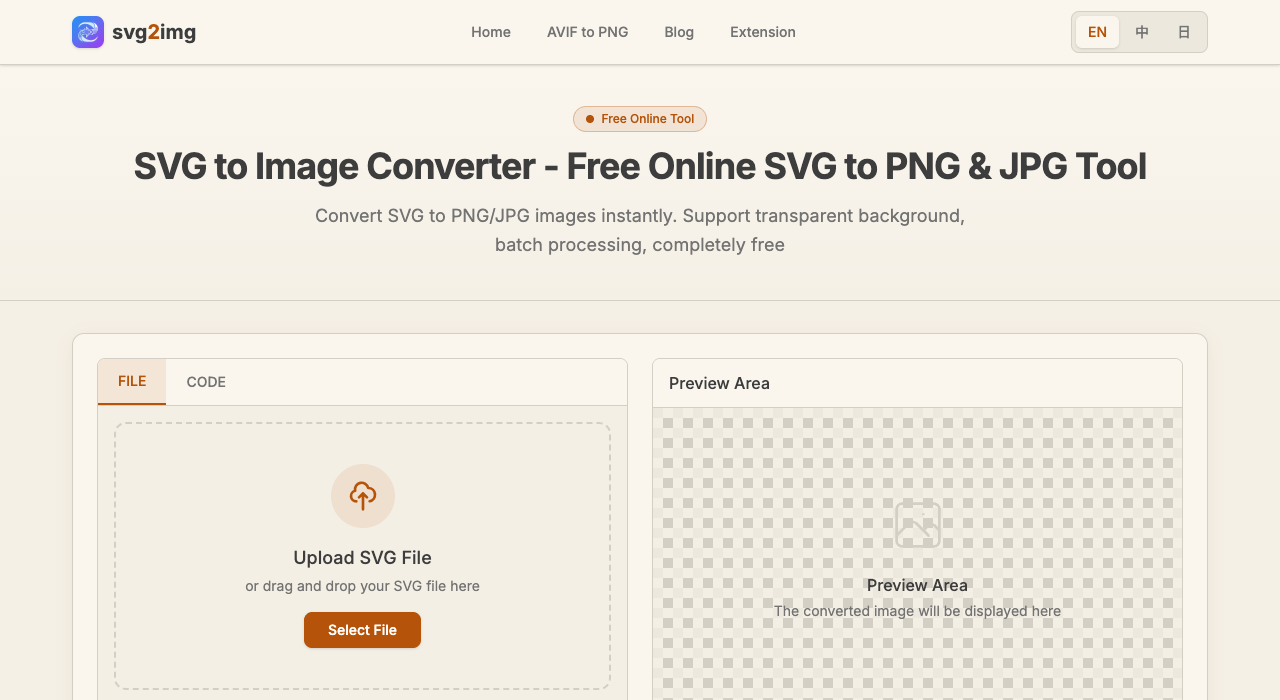
If you need to view an SVG file and possibly convert it to a more universally compatible format like PNG, JPG, or WebP, svg2img.cc is a convenient option that works entirely in your browser.
Unlike most online tools, svg2img.cc processes everything locally on your device using client-side JavaScript. Your SVG files are never uploaded to any server — which means total privacy, instant speed, and no file size limits.
How to Use svg2img.cc
- Open svg2img.cc in your browser.
- Drag and drop your SVG file onto the page, or click to browse.
- The SVG is rendered instantly — you can see a full preview.
- Optionally, set output format (PNG, JPG, WebP), dimensions, DPI, and background color.
- Click Download to save the converted image.
This is especially useful when you need to share an SVG with someone who can't open it — convert it to PNG in seconds and send that instead.
Pros and Cons
Pros:
- Completely free with no limits, no watermarks, no sign-up.
- 100% private — files never leave your browser.
- Instant conversion with no upload/download wait.
- Outputs PNG, JPG, and WebP with customizable settings.
- Works on any device with a modern browser.
Cons:
- Not an editing tool — it's for viewing and converting.
- Requires a modern browser with JavaScript enabled.
- Offline use requires the page to be cached first.
Platform: All (web browser)
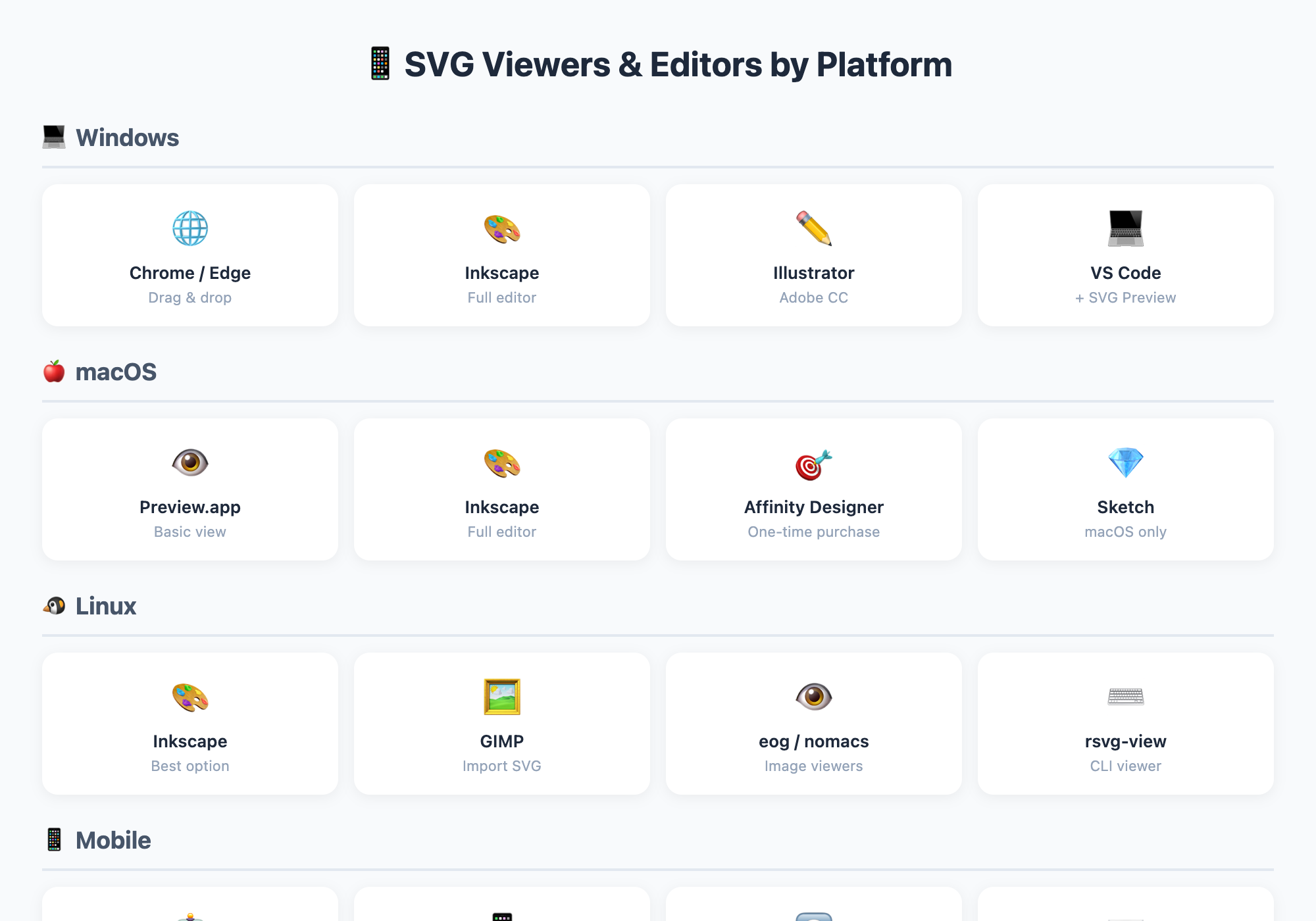
Method 9: Mobile Apps (Android & iOS)
Opening SVG files on mobile devices can be tricky since most built-in gallery apps don't support the format. But there are dedicated apps that handle SVG well.
Android
- SVG Viewer — A lightweight, free app that lets you open and view SVG files directly. Supports zoom and pan for inspecting details.
- SVG Reader — Another free option for viewing SVG files. Also supports basic file management and sharing.
iOS (iPhone & iPad)
- SVG Stitch — A free app for viewing SVG files on iOS with support for zoom and layer inspection.
- Safari browser — You can open SVG files directly in Safari by using the share sheet. From Files or another app, tap Share → Safari.
For both platforms, you can also email the SVG to yourself and open it in the mobile browser, or use a cloud service (Google Drive, Dropbox) to open SVG files in the browser.
Pros and Cons
Pros:
- View SVG files on the go.
- Most apps are free.
- No desktop computer required.
Cons:
- Limited or no editing capabilities on mobile.
- Complex SVGs may render slowly on older devices.
- App quality varies — some have ads or limited features.
Platform: Android, iOS
Method 10: OS Built-in Viewers (Limited Support)
Both Windows and macOS have some built-in ability to handle SVG files, though support is limited and inconsistent.
macOS: Preview
On macOS, the built-in Preview app can sometimes open SVG files — but results vary depending on the macOS version and the complexity of the SVG.
- Right-click the SVG file.
- Select Open With → Preview.
- If the SVG is supported, it renders in the Preview window.
Preview can display basic SVGs and even export them as PNG or PDF. However, complex SVGs with advanced features (filters, masks, animations) may not render correctly.
Tip: If Preview fails, Safari is your fallback — just drag the SVG into a Safari tab.
Windows: Photos & Other Options
Windows has historically had poor native SVG support. The built-in Photos app does not support SVG. However, on Windows 10 and 11:
- Edge browser can open SVG files natively (just drag into an Edge tab).
- Paint 3D can sometimes import SVG, but results are unreliable.
- Windows Explorer may show SVG thumbnails if you install a codec pack or SVG thumbnail extension.
Pros and Cons
Pros:
- No additional software installation needed.
- Convenient for quick viewing.
Cons:
- Rendering quality is inconsistent.
- Many SVG features are unsupported.
- No editing capabilities.
- Windows support is especially limited.
Platform: Windows (limited), macOS (partial)
Troubleshooting: SVG Won't Open?
Sometimes SVG files just won't cooperate. Here are the most common issues and how to fix them:
Wrong File Association
Your operating system might be trying to open SVG files with the wrong application. To fix this:
- Windows: Right-click the SVG → Open With → Choose your browser or preferred app → Check "Always use this app."
- macOS: Right-click (Control-click) → Get Info → Open With → Select your preferred app → Click Change All...
Corrupted SVG File
If the SVG file is corrupted, nothing will open it properly. To check:
- Open the SVG in a text editor (Method 7).
- Look for obvious problems: truncated content, missing closing tags, or garbled characters.
- A valid SVG should start with
<?xmlor<svgand end with</svg>. - If the file appears corrupted, try re-downloading it from the original source.
Browser Extension Conflict
Some browser extensions (ad blockers, privacy tools, or SVG-related extensions) can interfere with SVG rendering. If an SVG looks wrong in your browser:
- Try opening it in an Incognito/Private window (which disables most extensions).
- If it renders correctly in Incognito, an extension is the culprit.
- Disable extensions one by one to identify the problem.
SVG Too Large or Complex
Very large SVG files (50+ MB) or SVGs with tens of thousands of elements can overwhelm some viewers. Solutions:
- Try a dedicated editor like Inkscape, which handles large SVGs better than browsers.
- Open the SVG in a text editor and remove unnecessary elements.
- Use a tool like SVGO to optimize and reduce the file size.
Encoding Issues
If the SVG file contains special characters (Chinese, Japanese, Arabic, etc.) and appears garbled, it may have an encoding mismatch. Open it in a text editor and ensure it's saved as UTF-8 encoding.
FAQ
What program opens SVG files?
Many programs can open SVG files. The simplest option is any modern web browser (Chrome, Firefox, Edge, Safari) — just drag and drop the file into a browser tab. For editing, Inkscape (free) or Adobe Illustrator (paid) are the top choices. For quick viewing and conversion, svg2img.cc is a convenient browser-based option.
Can I open SVG files without installing software?
Yes. You have several no-install options:
- Web browsers: Drag the SVG into any browser tab to view it instantly.
- svg2img.cc: Open svg2img.cc in your browser to view and convert SVG files — no installation, no sign-up, and your files stay private.
- Figma: Use the free web version at figma.com to import and edit SVG files.
- Text editors: Your OS comes with a built-in text editor (Notepad on Windows, TextEdit on Mac) that can open SVG as code.
Why does my SVG look different in different programs?
SVG rendering engines vary between applications. A browser uses one rendering engine, Inkscape uses another, and Illustrator uses yet another. Each may interpret SVG features slightly differently, especially for advanced features like filters, blend modes, and text layout. For the most accurate rendering, use the program that created the SVG, or view it in a modern browser.
Can I open SVG files in Microsoft Office?
Microsoft Office has added SVG support in recent versions. In PowerPoint, Word, and Excel (Office 2019 and Microsoft 365), you can insert SVG files via Insert → Pictures. The SVG is converted to a Microsoft-compatible format and may lose some advanced features. For the best results, convert the SVG to PNG first using a tool like svg2img.cc and then insert the PNG.
Is SVG better than PNG?
Neither is universally "better" — they serve different purposes. SVG is a vector format that scales infinitely without quality loss, making it ideal for logos, icons, and illustrations. PNG is a raster format that works everywhere but loses quality when scaled up. Use SVG for web graphics that need to look sharp at any size. Use PNG for photographs, screenshots, and situations where SVG isn't supported. If you need to convert between them, svg2img.cc does it for free in your browser.
Conclusion
Opening SVG files doesn't require expensive software or complex setups. Here's a quick summary to help you choose the right method:
- Just need to view it? Drag it into your browser — done in 2 seconds.
- Need to edit it? Inkscape is free and powerful. Figma is great for web-based editing.
- Need to convert it? svg2img.cc handles viewing and conversion in your browser — private, free, and instant.
- Need to inspect the code? Open it in any text editor or VS Code.
- On mobile? Use a dedicated SVG viewer app or your mobile browser.
Whatever your platform or need, one of these 10 methods will get the job done — and most of them are completely free. If you want the quickest path from "I have an SVG" to "I can see it and use it," give svg2img.cc a try. No installation, no sign-up, no upload — just drag, view, convert, and download.
Put the guide into practice
Convert SVG files locally in your browser without uploading them.
Open converter