SVG Not Displaying? 12 Common Issues and How to Fix Them
Complete troubleshooting guide for SVG display issues. Covers MIME type errors, CORS problems, missing namespaces, viewBox issues, and more.
On this page
Advertisement
You've spent time crafting a beautiful SVG icon or illustration, embedded it in your webpage, and... nothing shows up. Or you see a broken image icon. Or the image renders but with wrong colors, wrong dimensions, or missing elements.
SVG display issues are among the most frustrating problems in web development because the same SVG file can behave differently across browsers, embedding methods, and hosting environments.
This guide covers the 12 most common SVG display problems, ranked by frequency. Each issue includes the symptom, root cause, and a specific fix. Work through them in order or jump directly to your problem.

Issue 1: Broken Image Icon
Symptom: The page shows a broken image icon (gray icon in Chrome/Edge, empty space in Firefox) instead of the SVG.
Cause A: Incorrect MIME Type
This is the single most common SVG display issue. The server must set the SVG MIME type to image/svg+xml, or the browser will refuse to render it.
How to check:
Open the SVG file URL directly in the browser. Press F12 to open DevTools, go to the Network panel, and check the Content-Type header of the SVG request.
Fix by server type:
Nginx:
# Confirm this line exists in /etc/nginx/mime.types
types {
    image/svg+xml svg svgz;
}
Apache (.htaccess):
AddType image/svg+xml .svg .svgz
AddEncoding gzip .svgz
Node.js / Express:
app.use(express.static('public', {
  setHeaders: (res, path) => {
    if (path.endsWith('.svg')) {
      res.setHeader('Content-Type', 'image/svg+xml');
    }
  }
}));
Cause B: Wrong File Path
The simplest and most easily overlooked cause — the SVG file path is incorrect.
How to check:
Look for 404 errors in the Console panel of DevTools.
Fix: Verify file paths are case-sensitive (Linux servers), and confirm the file actually exists at the specified location.
Issue 2: SVG Renders as Blank Space
Symptom: The SVG loads successfully (Network panel shows 200 OK), but nothing is visible on the page.
Cause A: Missing or Incorrect viewBox
The SVG viewBox attribute defines the visible area. Without it — or with wrong values — content may fall outside the visible region.
<!-- Broken: no viewBox -->
<svg width="100" height="100">
  <rect x="200" y="200" width="50" height="50" fill="red"/>
</svg>

<!-- Fixed: viewBox covers content area -->
<svg width="100" height="100" viewBox="0 0 300 300">
  <rect x="200" y="200" width="50" height="50" fill="red"/>
</svg>
Fix:
- Check the coordinate range of all graphical elements in the SVG
- Set
viewBoxto cover all visible content - Or open the SVG directly in the browser to see if it renders
Cause B: width/height Set to 0
<!-- Problem: zero dimensions -->
<svg width="0" height="0" viewBox="0 0 100 100">
Fix: Ensure width and height have valid values, or set dimensions via CSS.
Cause C: Content Color Matches Background
SVG content is white, background is white — looks blank.
Fix: Add a temporary background color to the SVG container:
svg {
  background: #f0f0f0; /* temporary diagnostic background */
}
Issue 3: SVG Interactions Don't Work via <img>
Symptom: CSS animations, JavaScript interactions, or hyperlinks inside the SVG don't work when loaded via an <img> tag.
Cause
Browser security restriction — SVGs loaded via <img> are treated as static images. Scripts, external references, and some CSS features are disabled.
Fix: Choose the right embedding method:
| Method | Animations | Scripts | External Refs | CSS Styling |
|---|---|---|---|---|
<img> | SMIL ✅ | ❌ | ❌ | ❌ |
<object> | ✅ | ✅ | ✅ | ❌ |
<iframe> | ✅ | ✅ | ✅ | ❌ |
| Inline SVG | ✅ | ✅ | ✅ | ✅ |
CSS background | SMIL ✅ | ❌ | ❌ | ❌ |
For full SVG interactivity, use inline SVG or the <object> tag.
Issue 4: CORS Errors Block SVG Loading
Symptom: Console shows "Cross-Origin Request Blocked" errors. SVG works locally but fails when deployed.
Cause
When the SVG file and HTML page are on different domains, the browser's same-origin policy blocks the load.
Fix
Set CORS headers on the server:
# Nginx configuration
location ~* \.svg$ {
    add_header Access-Control-Allow-Origin *;
    add_header Access-Control-Allow-Methods "GET, OPTIONS";
}
For <img> tags:
<img> usually isn't subject to CORS restrictions for display (only when reading SVG content). However, if the SVG internally references external resources (fonts, images), those references are subject to CORS.
Issue 5: SVG Text Doesn't Display
Symptom: Text content in the SVG is missing, shows as squares, or appears garbled.
Cause A: Font Not Loaded
The SVG uses a custom font that isn't loaded on the page.
Fix:
<!-- Embed the font in the SVG -->
<defs>
  <style>
    @import url('https://fonts.googleapis.com/css2?family=Roboto&display=swap');
    text { font-family: 'Roboto', sans-serif; }
  </style>
</defs>
Cause B: Text Converted to Paths
Many design tools convert text to paths on export. This ensures font consistency but makes text uneditable. If the conversion is incomplete, some text may be lost.
Fix: Re-export from your design tool and verify the text conversion settings.
Cause C: Character Encoding
SVG files containing non-ASCII characters must use UTF-8 encoding.
Fix:
# Check file encoding
file -I your-file.svg

# Convert to UTF-8
iconv -f ISO-8859-1 -t UTF-8 input.svg > output.svg
Issue 6: SVG Colors Are Wrong
Symptom: SVG displays with incorrect colors compared to the design file.
Cause A: Color Space Mismatch
SVG 1.1 uses sRGB. If the SVG uses CSS Color Level 4 functions (like lab(), color()), some browsers won't support them.
Fix: Use standard hex, rgb(), or hsl() color values.
Cause B: CSS Priority Override
Page-level CSS may override the SVG element fill colors.
Fix:
/* Prevent global fill from overriding SVG internals */
svg path {
  fill: inherit; /* Let internal SVG styles take effect */
}
Issue 7: SVG Looks Blurry When Scaled
Symptom: SVG appears blurry at different sizes, especially when enlarged.
Cause
SVG is vector-based and should scale perfectly. Blurriness usually means the SVG contains embedded raster images (<image> tags), or it's been unnecessarily rasterized.
Fix
- Check for embedded bitmaps:
grep -o '<image[^>]*' your-file.svg-
Ensure proper browser rendering: Don't set
image-rendering: pixelatedon the SVG container -
Use correct aspect ratio: If CSS dimensions don't match the viewBox ratio, the browser will stretch the SVG
Issue 8: SVG File Too Large — Slow Loading
Symptom: SVG takes a long time to load, causing page blank screens or lag.
Cause
Design tool exports often include massive amounts of redundant data: editor metadata, whitespace, unnecessary groups, unused definitions.
Fix: Optimize with SVGO
# Install SVGO
npm install -g svgo

# Optimize a single file (typically reduces 30-70% size)
svgo input.svg -o output.svg

# Batch optimize
svgo -f ./svg-directory/
Manual Optimization Tips
- Remove editor metadata (
<metadata>,sodipodi:,inkscape:namespaces) - Merge identical paths
- Use relative paths instead of absolute paths
- Remove invisible elements (
display="none"oropacity="0") - Extract repeated elements into
<defs>and reference with<use>
Issue 9: SVG Fails in IE or Old Browsers
Symptom: SVG works in Chrome/Firefox but not in IE11 or older Safari.
Cause
IE11 and older browsers have incomplete SVG support:
- No support for
foreignObject - SMIL animations don't work
- Some CSS properties aren't recognized
viewBoxscaling behaves inconsistently
Fix
- Use a polyfill:
<script src="https://cdnjs.cloudflare.com/ajax/libs/svg4everybody/2.1.9/svg4everybody.min.js"></script>
<script>svg4everybody();</script>- Avoid incompatible features: Use CSS animations instead of SMIL
- Provide PNG fallback:
<picture>
  <source type="image/svg+xml" srcset="logo.svg">
  <img src="logo.png" alt="Logo">
</picture>
Issue 10: Inline SVG Conflicts with Page CSS
Symptom: Colors or layout break when SVG is inlined into HTML.
Cause
Inline SVG elements inherit the page's CSS. Global style rules like svg { fill: currentColor; } affect all SVG child elements.
Fix
/* Isolate SVG styles */
.your-svg-container svg {
  all: initial; /* Reset all inherited styles */
  display: block;
  /* Then re-apply only what's needed */
}
Or use Shadow DOM for complete style isolation.
Issue 11: SVG Animations Don't Play
Symptom: SVG animations don't work — whether SMIL, CSS, or Web Animations API.
Cause A: <img> Tag Restriction
As covered in Issue 3, <img> tags only support SMIL animations.
Cause B: prefers-reduced-motion Setting
The user has "Reduce Motion" enabled in their system settings, and the browser disables non-essential animations.
Fix:
@media (prefers-reduced-motion: no-preference) {
  .animated-svg {
    animation: rotate 2s linear infinite;
  }
}
Cause C: Undefined Keyframes
Fix: Ensure @keyframes are defined within a scope the SVG can access.
Issue 12: SVG File Is Corrupted
Symptom: SVG won't open in any tool, or opens with severely missing content.
Cause
File was truncated or corrupted during transfer, editing, or saving.
Fix
Validate SVG structure:
# Validate XML syntax with xmllint
xmllint --noout your-file.svg

# Or use the W3C Validator
# https://validator.w3.org/
Common repairs:
- Check file completeness — confirm
</svg>closing tag exists - Check for mismatched tags
- Check special characters are properly escaped (
&→&,<→<) - Restore from version control
Quick test with svg2img.cc:
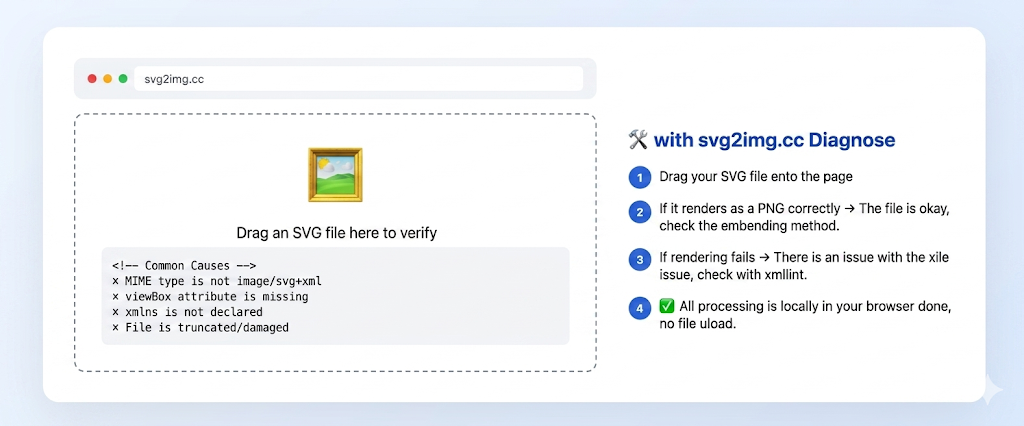
If your SVG isn't displaying in the browser, test it first with svg2img.cc. Drag the SVG onto the page — if it renders correctly and converts to PNG, the file is fine, and the issue is likely with your embedding method or server configuration. If svg2img.cc can't render it either, the file itself may have structural issues.
Quick Troubleshooting Flowchart
SVG Not Displaying
├── Broken image icon?
│   ├── Check file path (404?)
│   ├── Check MIME type (image/svg+xml?)
│   └── Check if file is corrupted
├── Blank space?
│   ├── Check viewBox settings
│   ├── Check width/height
│   └── Check color matches background
├── Interactions broken?
│   ├── Don't use <img> tag
│   └── Use inline SVG or <object>
├── CORS errors in console?
│   └── Configure server CORS headers
└── Colors/display wrong?
    ├── Check CSS conflicts
    ├── Check font loading
    └── Check color space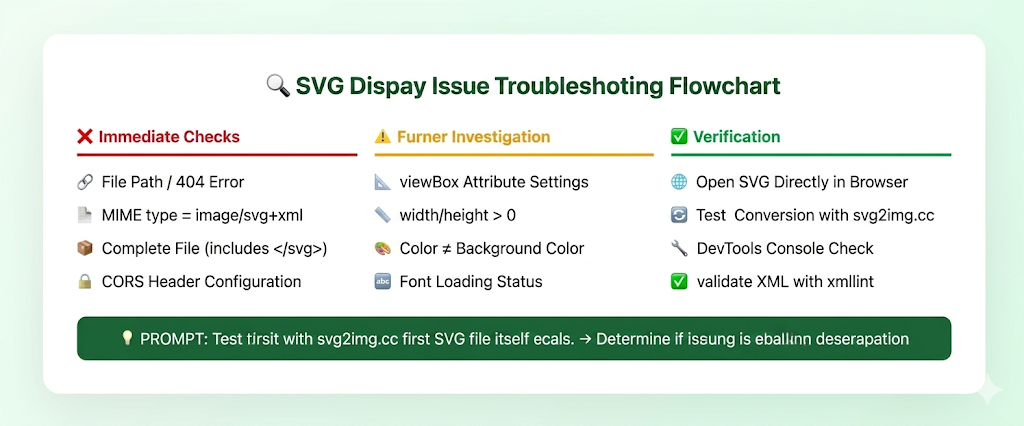
Best Practices to Prevent SVG Display Issues
- Always declare viewBox and xmlns:
<svg xmlns="http://www.w3.org/2000/svg" viewBox="0 0 100 100">-
Optimize with SVGO — reduces file size while eliminating potential compatibility issues
-
Test across browsers — at minimum Chrome, Firefox, and Safari
-
Verify with svg2img.cc — quick way to confirm your SVG file is intact
-
Configure server MIME types correctly — always check
image/svg+xmlon deployment -
Avoid JavaScript in SVGs — improves compatibility across all embedding methods
-
Convert text to paths — prevents font-related display issues if text editing isn't needed

Conclusion
SVG display issues are diverse, but the vast majority trace back to a handful of common causes: MIME type misconfiguration, viewBox problems, CORS restrictions, CSS conflicts, and file corruption. Follow the troubleshooting flowchart in this guide to quickly identify and fix most SVG display problems.
If you're unsure whether your SVG file itself is the problem, test it first with svg2img.cc — it runs entirely in your browser with no file uploads, making it the fastest way to verify SVG integrity.
FAQ
Q: My SVG works locally but not after deploying to the server. Why?
A: The most common cause is the server not setting the SVG MIME type to image/svg+xml. Check your server configuration to ensure .svg files have the correct Content-Type header.
Q: How can I tell if my SVG file is corrupted?
A: Open the SVG directly in a browser. If it renders correctly, the file is fine. You can also use xmllint --noout file.svg to validate XML syntax, or drag it onto svg2img.cc for a quick test.
Q: Why do <use> references in my SVG not display?
A: Check that the href attribute is correct (SVG 2 uses href instead of xlink:href). Ensure referenced elements are defined in <defs> and that IDs don't conflict.
Q: My SVG looks weird on mobile. What should I do?
A: Check that your SVG's viewBox and dimensions work with responsive layouts. Use CSS max-width: 100%; height: auto; to make the SVG adapt to its container width.
Q: Can ID conflicts between multiple SVGs cause problems?
A: Yes. If multiple inline SVGs on the same page use identical IDs (like #gradient1), browsers may confuse the references. Ensure each SVG's IDs are unique, or use CSS classes instead of IDs.
Q: Why doesn't <foreignObject> in my SVG display content?
A: <foreignObject> with embedded HTML has security restrictions. Some browsers don't support it in SVGs loaded via <img>. Use inline SVG embedding for it to work properly.
Put the guide into practice
Convert SVG files locally in your browser without uploading them.
Open converter