Convert SVG to PNG on Any Device: Windows, Mac, Mobile & More
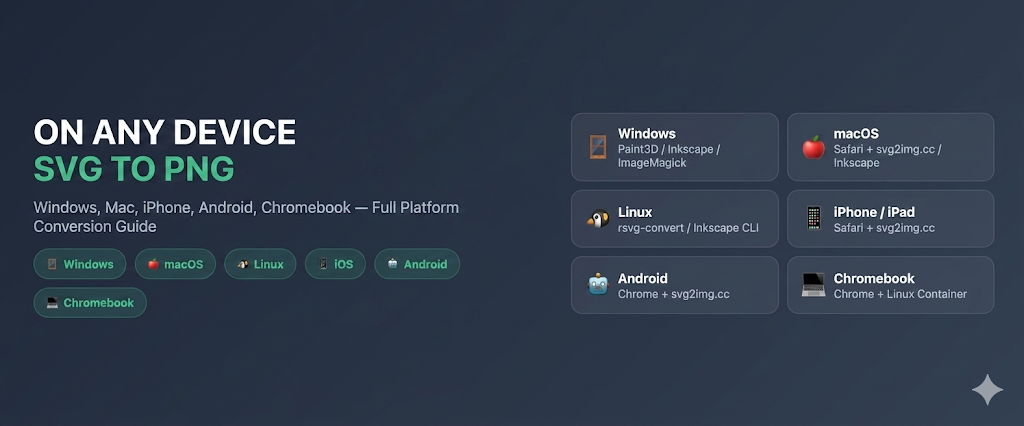
Full platform guide for SVG to PNG conversion. Windows, macOS, Linux, iOS, Android, Chromebook — every platform has the right tool.
On this page
Advertisement
SVG files are increasingly popular among designers and developers, but you don't always need SVG — many scenarios require PNG: social media uploads, PowerPoint illustrations, email signatures, phone wallpapers. The challenge is that different devices and operating systems handle SVG very differently.
This guide covers the best methods to convert SVG to PNG on Windows, macOS, Linux, iOS, Android, and Chromebook, with detailed steps for each approach.
Universal Solution: Browser-Based Conversion
No matter what device you're on, if you have a browser, you can use online tools. This is the most universal approach.
svg2img.cc (Recommended)
svg2img.cc is a free online SVG-to-PNG converter that processes everything in your browser — files are never uploaded to any server.
Steps on any device:
- Open svg2img.cc in any browser on your device
- Drag and drop or select your SVG file
- Choose PNG as the output format
- Adjust dimensions (optional)
- Click convert and download
Why we recommend it:
- Works on any device with a browser (including phones and tablets)
- Files stay on your device — no server uploads
- No software installation required
- Supports batch processing
💡 Mobile tip: Open svg2img.cc in your phone's browser, tap "choose file," and select the SVG from your file manager. Some phones may require downloading the SVG to local storage first.
Windows
Method 1: Microsoft Edge or Chrome (Quick View)
While Windows doesn't have a dedicated built-in SVG converter, you can use any modern browser to view and capture SVGs.
- Right-click your SVG file → "Open with" → "Microsoft Edge"
- The SVG will render perfectly in the browser.
- To get a PNG, you can use the built-in "Web capture" (Ctrl+Shift+S) to select the area and save it.
- For high-resolution conversion without screenshots, we recommend svg2img.cc which runs locally in your browser.
Method 2: Inkscape (Free)
Inkscape is the most powerful free SVG editor and converter for Windows.
# Install with winget
winget install Inkscape.Inkscape

# Command-line conversion after install
inkscape input.svg --export-filename=output.png --export-dpi=300
GUI usage:
- Open Inkscape and drag in the SVG file
- File → Export PNG Image (Ctrl+Shift+E)
- Select export area and DPI
- Click Export
Method 3: ImageMagick
# Install with Chocolatey
choco install imagemagick

# Command-line conversion
magick convert -background none input.svg output.png

# Batch conversion
magick mogrify -background none -format png *.svg
macOS
Method 1: Preview (macOS Ventura and later)
If you are using macOS 13 (Ventura), 14 (Sonoma), or 15 (Sequoia), the built-in Preview app can now open SVG files directly.
- Right-click the SVG file → "Open with" → "Preview"
- Once open, go to File → Export...
- Choose PNG from the Format dropdown.
- Adjust the resolution (DPI) if needed and click Save.
Method 2: svg2img.cc (All macOS Versions)
For users on older macOS versions or those who need custom dimensions and scaling, svg2img.cc is the fastest solution. It works directly in Safari or Chrome, processes files locally for privacy, and allows you to set the exact width/height you need.
Method 3: Inkscape for Mac
# Install with Homebrew
brew install --cask inkscape

# Command-line conversion
inkscape input.svg --export-filename=output.png --export-dpi=300
Method 4: sips (Built-in)
macOS includes sips for image format conversion, but SVG support is limited. If the SVG has already been rasterized to another format (like TIFF), you can use sips to convert to PNG:
sips -s format png input.tiff --out output.pngMethod 5: Automator Quick Action
Create a Finder Quick Action for right-click SVG-to-PNG conversion:
- Open Automator → New "Quick Action"
- Set "Workflow receives current" to "image files"
- Add "Run Shell Script" action
- Enter conversion script (calling Inkscape or ImageMagick)
- Save as "SVG to PNG"
Linux
Method 1: Command-Line Tools
Linux users have the richest selection of CLI tools:
# ImageMagick
convert -background none input.svg output.png

# Inkscape CLI
inkscape input.svg --export-filename=output.png --export-dpi=300

# rsvg-convert (lightweight)
rsvg-convert -w 1024 -h 1024 input.svg -o output.png

# cairosvg (Python)
pip install cairosvg
cairosvg input.svg -o output.png
Method 2: Install rsvg-convert
rsvg-convert is the lightest SVG-to-PNG CLI tool:
# Ubuntu/Debian
sudo apt install librsvg2-bin

# Fedora
sudo dnf install librsvg2-tools

# Arch
sudo pacman -S librsvg

# Usage
rsvg-convert -w 2048 -h 2048 input.svg -o output.png
Method 3: GIMP
# Install
sudo apt install gimp

# Batch processing (Script-Fu)
gimp -i -b '(let* ((image (car (file-svg-load RUN-NONINTERACTIVE "input.svg" "input.svg" 72 1024 1024))) (drawable (car (gimp-image-flatten image)))) (file-png-save RUN-NONINTERACTIVE image drawable "output.png" "output.png" 0 9 1 1 1 1 1)) (gimp-quit 0)'
iOS (iPhone / iPad)
Method 1: Safari Browser
Open svg2img.cc directly in Safari on iPhone or iPad:
- Open Safari
- Go to svg2img.cc
- Tap "choose file" and select SVG from the Files app
- Wait for conversion
- Long-press the converted image → Save to Photos
Method 2: Shortcuts App
Create an iOS Shortcut to streamline the process:
- Open the Shortcuts app
- Create a new shortcut
- Add actions: Get File → Open svg2img.cc in Safari
- Or use "Get Contents of URL" to call a conversion API
Method 3: Third-Party Apps
The App Store has some SVG-related apps, but most have limited functionality. Browser-based solutions are recommended.
Android
Method 1: Chrome Browser
Similar to iOS, opening svg2img.cc in Chrome is the simplest approach:
- Open Chrome
- Go to svg2img.cc
- Tap "choose file"
- Select the SVG from your file manager
- Download the converted PNG
Method 2: Third-Party Apps
Several SVG viewer and converter apps are available on Google Play:
- SVG Viewer — View SVG files and take screenshots
- Image Converter — Supports multiple format conversions
⚠️ Check the privacy policies of third-party apps — some upload files to their servers for processing. If privacy matters, use browser-based solutions like svg2img.cc that process everything locally.
Chromebook
Method 1: Chrome Browser
Chromebooks run Chrome OS, so browser solutions work naturally:
- Open Chrome
- Go to svg2img.cc
- Drag and drop or select the SVG file
- Convert and download
Method 2: Linux Container (Advanced)
Chromebooks support Linux containers (Crostini), where you can install CLI tools:
# In the Chromebook Linux container
sudo apt update
sudo apt install imagemagick inkscape

convert -background none input.svg output.png
Platform Comparison
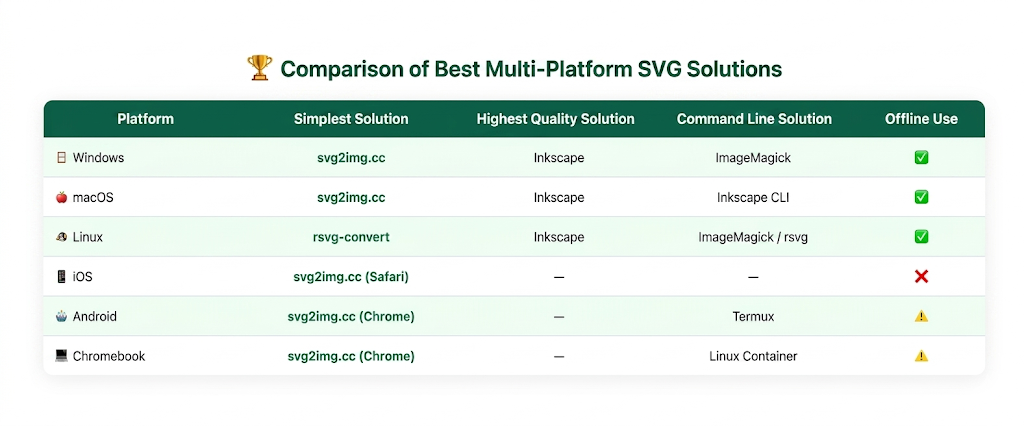
| Platform | Simplest | Highest Quality | CLI Option |
|---|---|---|---|
| Windows | svg2img.cc | Inkscape | ImageMagick |
| macOS | svg2img.cc | Inkscape | Inkscape CLI |
| Linux | rsvg-convert | Inkscape | ImageMagick / rsvg |
| iOS | svg2img.cc | — | — |
| Android | svg2img.cc | — | Termux + ImageMagick |
| Chromebook | svg2img.cc | — | Linux container |
Special Scenarios
Converting for Email Clients
Email templates typically require PNG format. If you received an SVG attachment that needs conversion:
- Download the SVG attachment to your device
- Open svg2img.cc in your browser
- Upload the SVG and convert to PNG
- Insert the PNG into your email
For Office Documents (Word / PowerPoint)
Office 2019+ can insert SVG files, but for compatibility across all Office versions:
- Convert the SVG to a PNG with enough pixel dimensions for the document. For print, calculate size from the target DPI.
- Insert the PNG file in Word/PowerPoint
For Social Media
Social media platforms have limited SVG support. Most platforms (Instagram, Twitter/X, Facebook) only accept bitmap formats:
- Convert to PNG on svg2img.cc
- Use 1080×1080 or 1200×630 dimensions (optimal sizes vary by platform)
- Download and upload directly to the social platform
Choosing the Right Output Size
Different use cases need different output sizes:
| Use Case | Recommended Size | DPI |
|---|---|---|
| Web icons | 16×16 ~ 512×512 | 72 |
| Social media sharing | 1200×630 | 72 |
| Instagram posts | 1080×1080 | 72 |
| PowerPoint illustrations | 1920×1080 | 150 |
| Size × 3.5 | 300 | |
| App icons | 1024×1024 | 72 |
| Email signatures | 200×60 | 72 |
Conclusion
No matter what device you're using, converting SVG to PNG is straightforward:
- All devices: svg2img.cc — open in browser, no server uploads
- Windows / Mac / Linux: Install Inkscape or ImageMagick for the highest quality and batch processing
- Phones / Tablets: Use svg2img.cc directly in your mobile browser
Choose the method that fits your device and needs, and you'll have your conversion done in minutes.
FAQ
Q: Why can't I open SVG files on my phone?
A: Most phone operating systems don't have a built-in SVG viewer. You can open SVG files directly in your browser, or use svg2img.cc to convert them to PNG first.
Q: SVG looks wrong when inserted in Office. What should I do?
A: SVG support varies significantly between Office versions. Convert to PNG first, then insert. Use a high DPI (like 300) on svg2img.cc for crisp results in documents.
Q: The converted PNG looks different on different devices. Why?
A: Different devices have different screen color gamuts and calibrations. Ensure your SVG uses sRGB color space and that no color space conversion happens during the conversion process.
Q: How do I convert SVG without an internet connection?
A: Install local software: Inkscape or ImageMagick on Windows, Inkscape via Homebrew on Mac, rsvg-convert or ImageMagick on Linux.
Q: Does svg2img.cc work on Chromebook?
A: Absolutely. Chromebook's Chrome browser fully supports svg2img.cc. All processing happens in the browser — no additional software needed.
Q: The converted image looks blurry. What should I do?
A: Increase the output pixel dimensions. On svg2img.cc, set custom dimensions to at least 2x the actual display size for sharp screen results. Use DPI mainly when you are preparing a file for print or a document workflow that interprets physical size.
Put the guide into practice
Convert SVG files locally in your browser without uploading them.
Open converter