
Complete Guide to SVG Image Format: From Basics to Advanced Applications
SVG (Scalable Vector Graphics) is an XML-based vector image format that plays an increasingly important role in modern web development. Whether you're building responsive icons, creating data visualizations, or designing interactive animations, SVG offers capabilities that traditional image formats simply cannot match. This comprehensive guide will take you from the fundamentals to advanced techniques.
> What is SVG?
SVG stands for Scalable Vector Graphics — a markup language that uses XML format to define two-dimensional graphics. Unlike traditional bitmap formats like JPEG and PNG that store images as a grid of colored pixels, SVG describes graphics using mathematical formulas and geometric primitives. This fundamental difference gives SVG its most celebrated advantage: infinite scalability without quality loss.
Think about what happens when you zoom into a photograph on your phone. Eventually, you start seeing individual pixels — those blocky, jagged squares that break the illusion of a continuous image. Now imagine a format where no matter how close you zoom, the edges stay perfectly smooth and crisp. That's the magic of vector graphics.
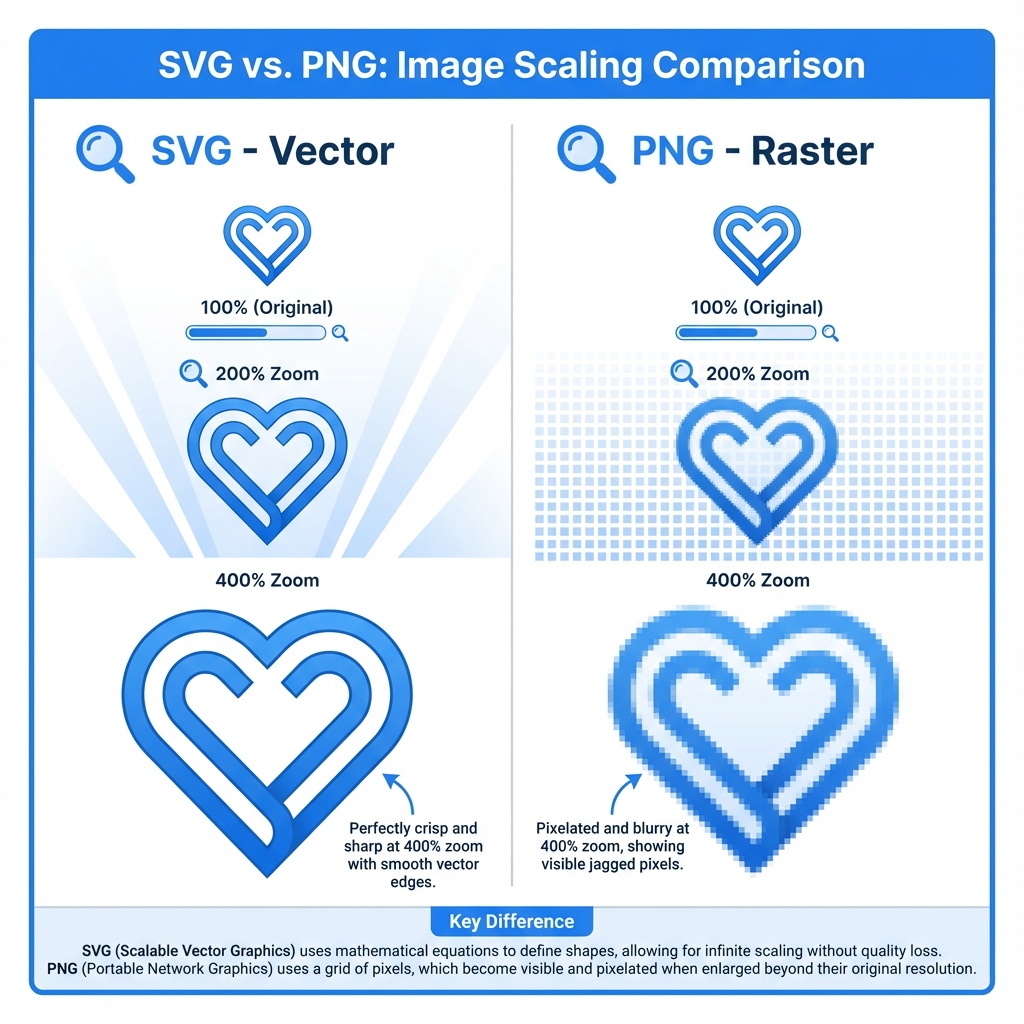
Beyond scalability, SVG brings several powerful capabilities to the table. Because SVG files are essentially text documents, they can be edited with any text editor, compressed efficiently, and even indexed by search engines — making your graphic content SEO-friendly. SVG also integrates seamlessly with web technologies: you can style them with CSS, animate them with JavaScript, and make them fully accessible with ARIA attributes.
> A Brief History
The journey of SVG began in 1999 when the W3C started developing the specification as an open standard for vector graphics on the web. After years of refinement, SVG 1.1 became an official W3C Recommendation in 2003, establishing the stable foundation that web developers still rely on today. The standard received a significant update in 2011 with SVG 1.1 Second Edition, which clarified ambiguities and fixed errata. Most recently, SVG 2.0 reached Candidate Recommendation status in 2018, introducing modern features like improved text handling and better integration with CSS.
Today, SVG enjoys universal browser support, making it a reliable choice for any web project without worrying about compatibility issues.
> Understanding SVG Syntax
At its core, an SVG file is an XML document that describes shapes, paths, and text. Here's a simple example that demonstrates the basic structure:
<svg width="200" height="200" xmlns="http://www.w3.org/2000/svg">
  <!-- A blue circle in the center -->
  <circle cx="100" cy="100" r="50" fill="#3B82F6" />

  <!-- A green rectangle behind it -->
  <rect x="50" y="50" width="100" height="100" fill="#10B981" />

  <!-- Text at the top -->
  <text x="100" y="30" text-anchor="middle" fill="#1F2937">
    Hello SVG!
  </text>
</svg>
The <svg> element acts as the canvas, with width and height defining its dimensions. Inside, you place various shape elements that get rendered in order — later elements appear on top of earlier ones, similar to layers in design software.
> The Building Blocks: SVG Elements
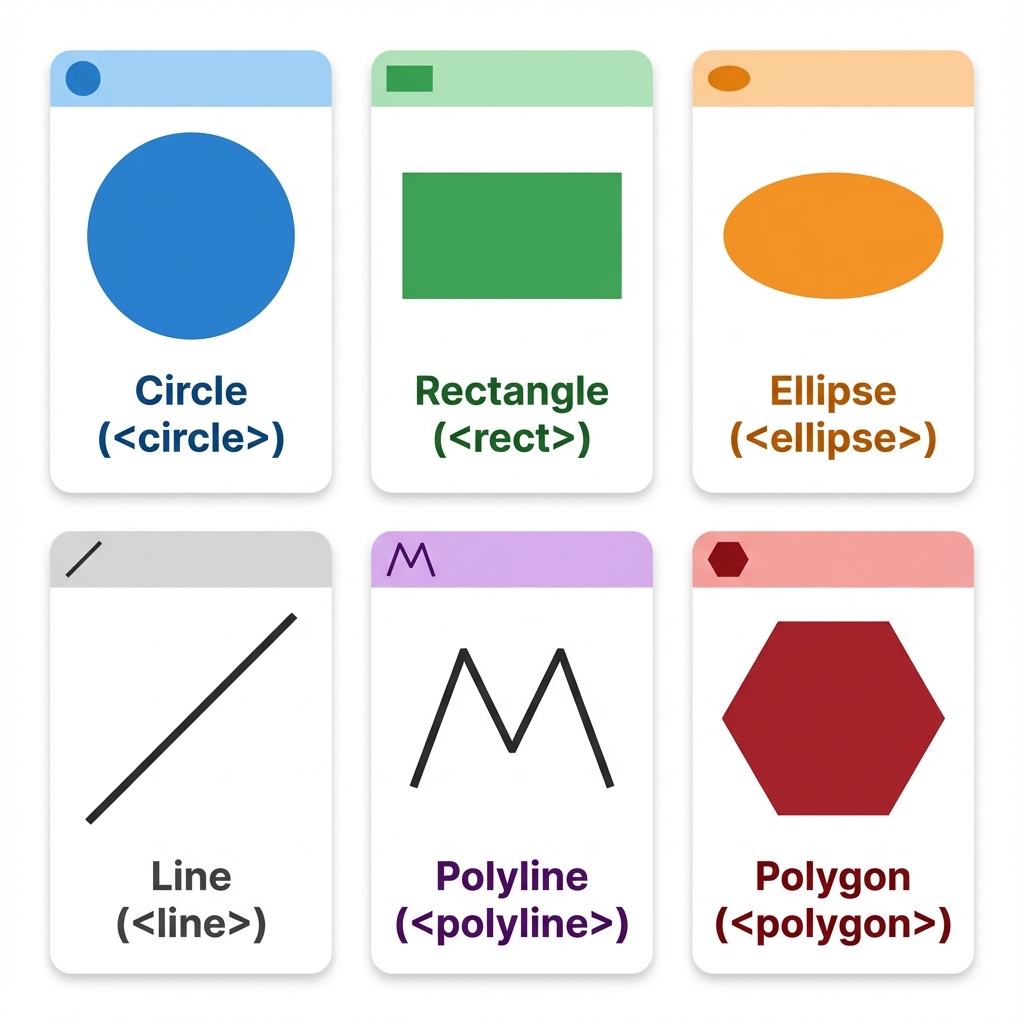
SVG provides a rich vocabulary of elements for creating graphics. The diagram below shows the six fundamental shapes that form the foundation of most SVG artwork:
Shape Elements
The <circle> element creates perfect circles, defined by a center point (cx, cy) and radius (r). For rectangles and squares, <rect> offers optional rounded corners through the rx and ry attributes. When you need ovals, <ellipse> extends the circle concept with separate horizontal and vertical radii.
For connecting points, <line> draws straight segments between two coordinates, while <polyline> connects multiple points without closing the shape. When you need a closed polygon like a triangle or hexagon, <polygon> automatically connects the last point back to the first.
The Powerful Path Element
While basic shapes handle common cases, the <path> element is SVG's Swiss Army knife. Using a compact command language, it can describe virtually any shape imaginable:
<path d="M 10,20 C 20,10 30,30 40,20 S 60,10 70,20"
      fill="none" stroke="#3B82F6" stroke-width="2"/>
The d attribute contains drawing commands: M moves the pen, L draws lines, C creates Bézier curves, and many more. Most design tools export complex artwork as path data.
Organization and Reuse
The <g> element groups related elements together, allowing you to apply transformations or styles to multiple shapes at once. For elements you want to define once and use multiple times, <defs> creates a library of reusable components, while <use> instantiates them wherever needed — perfect for icon systems.
> When to Use SVG: Real-World Scenarios
Icons and Brand Assets
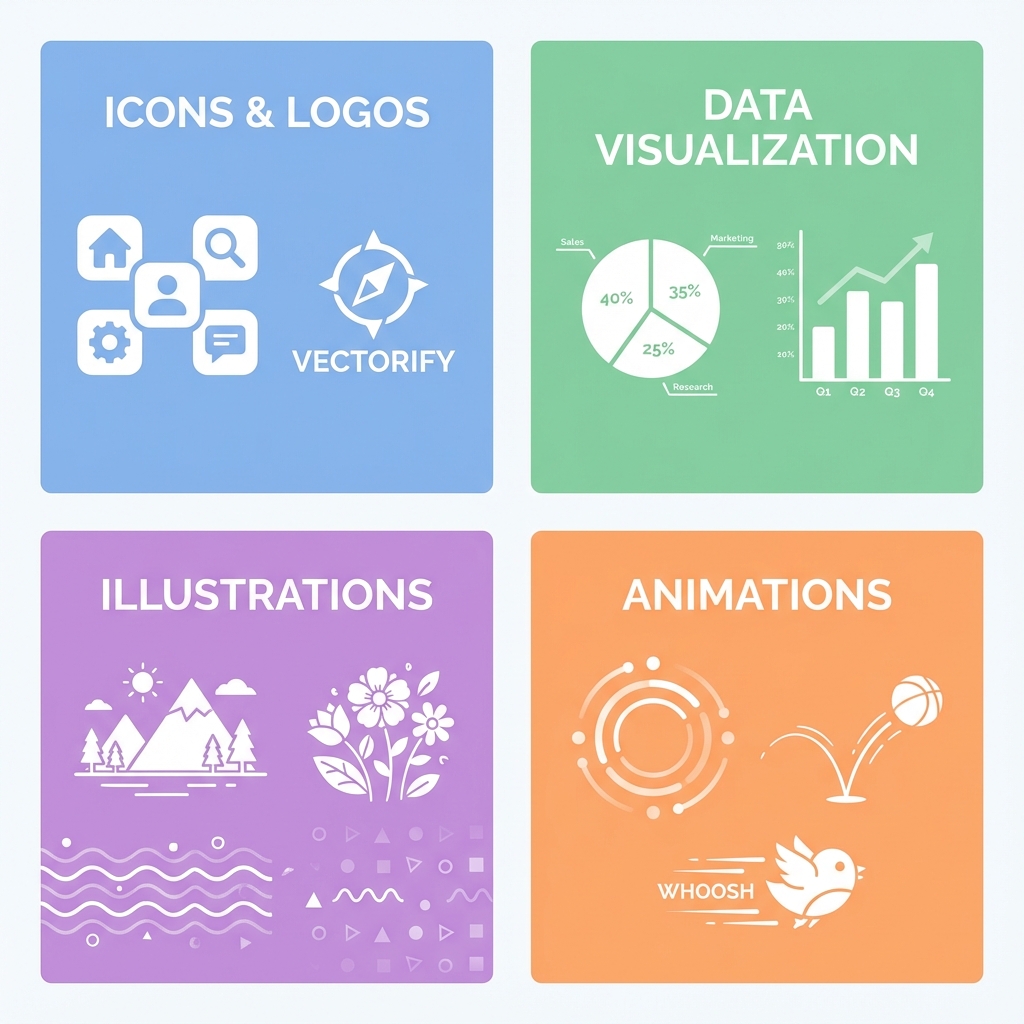
Imagine you're building a responsive web application that needs to look sharp on everything from a small phone screen to a 5K monitor. Traditional PNG icons would require multiple resolutions — 1x, 2x, maybe 3x versions — multiplying your file count and complexity. With SVG, a single file scales perfectly to any size. Companies like GitHub, Airbnb, and Stripe use SVG icon systems precisely for this reason.
SVG also excels for logos and brand marks. When your company logo appears in a hero banner, a tiny favicon, and a print-ready PDF, SVG handles all three scenarios from one source file. The ability to style SVG with CSS means you can even create dark mode variants without separate assets.
Data Visualization and Charts
When it comes to charts, graphs, and dashboards, SVG's strengths really shine. Libraries like D3.js, Chart.js, and Recharts generate SVG output because vector graphics handle the precision that data visualization demands. Each bar, line, or pie slice is a discrete element that can be styled, animated, and made interactive. Hovering over a data point to show a tooltip? Easy with SVG's DOM integration.
Decorative Illustrations
Modern websites increasingly feature illustration-style graphics for hero sections, empty states, and feature explanations. SVG illustrations load faster than equivalent raster images and scale beautifully across devices. Services like unDraw, Illustrations.co, and Humaaans provide SVG illustration libraries specifically because the format works so well for this purpose.
Motion and Animation
From subtle loading spinners to elaborate animated illustrations, SVG handles motion elegantly. You can animate SVG using CSS animations, JavaScript (via libraries like GSAP), or SVG's native SMIL animation. Path morphing, draw-on effects, and coordinated multi-element animations are all possible without reaching for video or GIF formats.
> Four Ways to Use SVG in Your Projects
Inline SVG: Maximum Control
Embedding SVG directly in your HTML gives you full access to style and script every element:
<svg width="100" height="100">
  <circle cx="50" cy="50" r="40" fill="red" />
</svg>
This approach is ideal when you need CSS styling or JavaScript interaction, though it does add to your HTML file size.
Image Tag: Simple and Clean
For static graphics that don't need styling, the <img> tag works perfectly:
<img src="icon.svg" alt="Settings icon" width="24" height="24" />
The browser handles caching, and your HTML stays clean. However, you cannot style the SVG's internal elements from external CSS.
CSS Background: Decorative Use
When SVG serves a purely decorative purpose, CSS backgrounds keep your markup semantic:
.hero-section {
  background-image: url('pattern.svg');
  background-size: cover;
}
Object Tag: External with Scripting
The <object> tag loads external SVG files while still allowing internal scripts to run:
<object type="image/svg+xml" data="interactive-chart.svg">
  <p>Your browser doesn't support SVG</p>
</object>
> Styling SVG with CSS
One of SVG's superpowers is its deep integration with CSS. You can style SVG elements using familiar properties, though some names differ from HTML styling:
.icon-circle {
  fill: #3B82F6;           /* Like background-color */
  stroke: #1E40AF;         /* Like border-color */
  stroke-width: 2px;       /* Like border-width */
  opacity: 0.9;
  transition: fill 0.2s ease;
}

.icon-circle:hover {
  fill: #2563EB;           /* Darker on hover */
}
CSS animations work beautifully with SVG, enabling effects that would be difficult or impossible with raster images:
@keyframes spin {
  from { transform: rotate(0deg); }
  to { transform: rotate(360deg); }
}

.loading-spinner {
  animation: spin 1s linear infinite;
  transform-origin: center;
}
> Adding Interactivity with JavaScript
Since inline SVG elements become part of the DOM, JavaScript can manipulate them just like HTML elements:
// Select and modify SVG elements
const circle = document.querySelector('.icon-circle');

// Respond to user events
circle.addEventListener('click', () => {
  circle.setAttribute('fill', 'green');
  console.log('Circle clicked!');
});

// Dynamic updates based on data
function updateProgress(percent) {
  const progressCircle = document.querySelector('.progress-ring');
  const circumference = 2 * Math.PI * 45; // r=45
  const offset = circumference - (percent / 100) * circumference;
  progressCircle.style.strokeDashoffset = offset;
}
> Optimizing SVG Performance
While SVG files start small, design tools often export bloated code. Here's how to keep your SVGs lean and fast:
Simplify paths using tools like SVGO or SVGOMG. These tools remove unnecessary metadata, optimize path commands, and strip out editor-specific cruft that design software leaves behind. A typical SVG from Illustrator or Figma can shrink by 30-50% after optimization.
Leverage symbols for repeated elements. If your icon appears ten times on a page, define it once in a <symbol> block and reference it with <use>. The browser downloads the shape data once and renders it multiple times — far more efficient than duplicating the entire SVG.
Consider loading strategies. For icons and UI elements, inline SVG avoids extra HTTP requests. For larger illustrations, external files with proper caching make more sense. Apply loading="lazy" to below-the-fold SVG images to defer loading until needed.
> SVG vs Other Formats: Making the Right Choice
| Consideration | SVG | PNG | JPEG | GIF |
|---|---|---|---|---|
| Best for | Icons, logos, illustrations | Screenshots, complex graphics with transparency | Photographs | Simple animations |
| Scaling | Perfect at any size | Gets pixelated when enlarged | Gets pixelated when enlarged | Gets pixelated when enlarged |
| File size | Small for simple graphics | Medium | Can be highly compressed | Medium |
| Transparency | Full alpha support | Full alpha support | None | Binary only |
| Animation | Full support | None | None | Limited (256 colors) |
| Text searchable | Yes | No | No | No |
| Editable | With any text editor | Requires image editor | Requires image editor | Requires image editor |
Choose SVG for logos, icons, illustrations, data visualizations, and anything that needs to stay sharp at multiple sizes.
Choose PNG when you need transparency with complex imagery like screenshots or graphics with many colors and gradients.
Choose JPEG for photographs where file size matters and transparency isn't needed.
> Accessibility Best Practices
Making SVG accessible ensures everyone can understand your graphics, including users of screen readers:
<svg role="img" aria-labelledby="chart-title chart-desc">
  <title id="chart-title">Q3 Sales Performance</title>
  <desc id="chart-desc">
    Bar chart showing monthly sales from July to September,
    with September having the highest value at $45,000.
  </desc>
  <!-- Chart content -->
</svg>
For decorative SVGs that add no informational value, hide them from assistive technology:
<svg aria-hidden="true">
  <!-- Purely decorative content -->
</svg>
> Common Questions
How do I handle browser compatibility?
SVG enjoys excellent support across all modern browsers. For the rare case of needing IE8 support, provide a PNG fallback using the <picture> element or conditional comments.
My SVG file is huge — how can I fix it? Run it through SVGOMG to strip unnecessary data. Also check if your design has excessive anchor points that could be simplified.
Can I use custom fonts in SVG?
Yes! Either embed the font using CSS @font-face (ensuring the font loads before the SVG renders) or convert text to paths in your design tool. Converting to paths increases file size but guarantees consistent rendering everywhere.
Will complex animations hurt performance? SVG animations are generally performant, but animating many elements simultaneously or using computationally expensive effects like filters can cause janky animations on lower-powered devices. Test on representative hardware and simplify if needed.
> When to Convert SVG to Other Formats
While SVG excels in many scenarios, there are times when converting to raster formats like PNG, JPG, or WebP becomes necessary. Understanding these situations helps you make the right choice for each project.
Scenarios That Require Conversion
Social media sharing — Platforms like Twitter, Facebook, and LinkedIn often don't render SVG files properly in previews. Converting your SVG graphics to PNG or JPG ensures your images display correctly when shared.
Email campaigns — Most email clients have limited or no SVG support. If your newsletter includes graphics designed as SVG, convert them to PNG for reliable rendering across Gmail, Outlook, and other clients.
Print production — While SVG works for some print workflows, many print shops prefer high-resolution raster formats. Converting SVG to PNG at 300 DPI or higher ensures your graphics meet print quality requirements.
Favicon and app icons — Although modern browsers support SVG favicons, platform-specific icon requirements (iOS app icons, Android launcher icons, Windows tiles) still demand PNG or other raster formats at specific dimensions.
Integration with raster-only systems — Some legacy CMS platforms, image CDNs, or third-party APIs only accept raster formats. Converting SVG enables compatibility with these systems.
Complex effects and filters — If your SVG uses advanced filter effects that render inconsistently across browsers, converting to a raster format ensures identical appearance everywhere.
Choosing the Right Output Format
| Use Case | Recommended Format | Why |
|---|---|---|
| Icons, logos with transparency | PNG | Lossless quality, full alpha channel |
| Complex illustrations | PNG or WebP | Preserves detail and transparency |
| Photographs with SVG overlays | JPG or WebP | Efficient compression for photos |
| Web performance priority | WebP or AVIF | Best compression-to-quality ratio |
| Universal compatibility | PNG | Works everywhere, no fallbacks needed |
How to Convert SVG to PNG, JPG, or WebP
The conversion process can be done several ways:
Browser-based converters (like our free SVG converter) offer the simplest approach — no software installation, works on any device, and your files stay private since conversion happens locally in your browser.
Design software like Figma, Adobe Illustrator, or Inkscape can export SVG files to various raster formats with precise control over resolution, quality, and color profiles.
Command-line tools like ImageMagick, Inkscape CLI, or librsvg enable batch processing and automation for large-scale conversion needs.
Build tooling through packages like sharp (Node.js) or cairosvg (Python) allows developers to integrate SVG-to-raster conversion into their deployment pipelines.
When converting, always specify the output dimensions explicitly. Since SVG is resolution-independent, you control the final raster size — use 2x or 3x dimensions for high-DPI displays, and consider generating multiple sizes for responsive images.
> Conclusion
SVG has earned its place as an essential tool in the modern web developer's toolkit. Its unique combination of infinite scalability, tiny file sizes, editability, and deep web integration makes it irreplaceable for icons, logos, data visualization, and interactive graphics.
As high-resolution displays become the norm and responsive design grows ever more important, SVG's advantages will only become more pronounced. Whether you're just starting with SVG or looking to deepen your expertise, the time invested in mastering this format will pay dividends across every project you build.
Ready to convert your SVG files to other formats? Try our free SVG to PNG converter — it works entirely in your browser with no upload required.
This guide was created by the SVG2IMG team to help developers understand and leverage the full power of the SVG format. Questions or suggestions? We'd love to hear from you.