Why SVG Fonts, External Images, and Filters Fail During Export
A troubleshooting guide for SVG export problems involving missing fonts, broken external images, unsupported filters, masks, clipping paths, and browser security rules.
On this page
An SVG file can look correct in your design tool and still export incorrectly to PNG. The most common surprises are missing fonts, blank image areas, clipped shadows, broken masks, and filters that look different after conversion.
The reason is simple: SVG is not always a self-contained image. It can reference fonts, external bitmap files, CSS, filters, masks, clipping paths, and browser features. If the exporter cannot access or reproduce those resources, the PNG will not match the preview.
This guide explains what fails, why it fails, and how to prepare SVG files for reliable export.
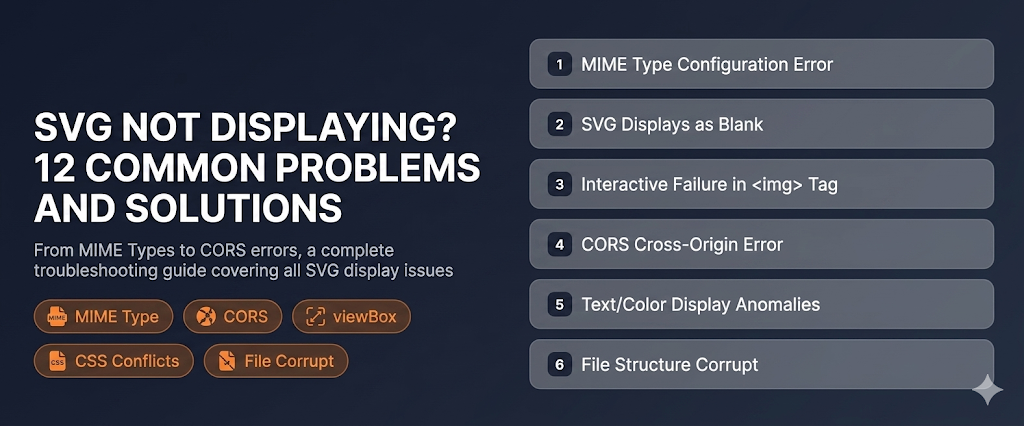
Problem 1: Fonts Change or Disappear
Text in SVG can be stored as real text:
<text font-family="Inter" font-size="32">Export</text>That line does not contain the Inter font. It only asks the renderer to use Inter. If the export environment does not have the font installed or cannot load it from CSS, it will use a fallback font. The PNG may show different spacing, different weight, clipped letters, or line breaks in the wrong place.
Fix Options
Convert text to outlines when the graphic must match exactly. In Figma, Illustrator, Sketch, or Inkscape, this turns characters into vector paths. The export no longer depends on installed fonts.
Embed or load the font reliably if the SVG is meant to stay editable. This is more fragile for browser-based conversion because remote font loading can be blocked by CORS, network errors, or privacy settings.
Use system fonts only when exact brand typography does not matter.
For logos, badges, and social images, outlining text is usually the safest choice.
Problem 2: External Images Do Not Render
SVG can reference another image file:
<image href="photo.png" width="400" height="300" />or even:
<image href="https://example.com/photo.png" />If the converter cannot access that file, the image area becomes blank. This happens when:
- The linked image path is relative and the converter only receives the SVG file.
- The remote server blocks cross-origin access.
- The file requires authentication.
- The image URL has expired.
- The SVG was moved to a different folder.
Fix Options
Embed important images as data URLs or export from the design tool with images embedded. For example:
<image href="data:image/png;base64,..." />This makes the SVG larger, but it travels as one complete file. For private assets or browser-based conversion, embedding is usually more reliable than linking remote files.
If the image should remain linked, keep the folder structure together and test the SVG after moving it to the final environment.
Problem 3: Filters Look Different
SVG filters can create shadows, blurs, color effects, lighting, displacement, and more. They are powerful but not every renderer handles every filter the same way.
Common symptoms:
- Drop shadows are clipped at the edge.
- Blur radius looks stronger or weaker.
- Color filters change unexpectedly.
- Complex filters disappear.
- Export takes a long time or fails.
Clipped shadows often come from a filter region that is too small:
<filter id="shadow" x="0" y="0" width="100%" height="100%">If the shadow extends outside that region, it gets cut off. Increase the filter area:
<filter id="shadow" x="-20%" y="-20%" width="140%" height="140%">For production exports, simplify complex filters when possible. A simple shadow or blur is usually reliable. Nested filters, displacement maps, and blend-heavy effects are more likely to vary between tools.
Problem 4: Masks and Clipping Paths Break
Masks and clipping paths are often used for avatars, badges, charts, and illustrations. They can fail when IDs collide, when the mask uses unsupported units, or when the export tool interprets nested transforms differently.
Check for:
- Duplicate
idvalues after combining multiple SVGs clipPathormaskreferences pointing to missing IDs- Masks that depend on external images
- Objects transformed far outside the viewBox
If a masked image fails, first test the SVG in a browser. If it already fails there, the SVG structure is the problem. If it works in the browser but fails in another tool, flatten the effect in the design tool before exporting.
Problem 5: CSS Is Not Available During Export
Some SVG files rely on external CSS:
<link rel="stylesheet" href="styles.css" />or classes defined outside the file:
<path class="brand-primary" />If the CSS is not included inside the SVG, the renderer may not know the fill color, stroke width, font, or animation state.
For portable SVG files, prefer inline styles or presentation attributes:
<path fill="#0f766e" stroke="#0f172a" stroke-width="2" />This is less elegant than a design-system stylesheet, but it is much more reliable for conversion.
Prepare SVG Files for Reliable PNG Export
Use this checklist before converting important files:
- Convert brand-critical text to outlines.
- Embed important bitmap images.
- Remove remote image and font dependencies when possible.
- Inline essential CSS styles.
- Expand filter regions for shadows and blurs.
- Check for duplicate IDs in masks and clip paths.
- Keep a correct
viewBox. - Test one file before batch conversion.
When using svg2img.cc, conversion happens in your browser. That is good for privacy because your SVG source stays on your device, but it also means the browser can only render resources it can access. A self-contained SVG will export more reliably than one that depends on remote fonts, private images, or external stylesheets.
When to Flatten the Design
If the final output only needs to be a PNG, flattening is often the most practical fix. Convert text to paths, embed images, simplify effects, and export from a clean artboard. Keep the original editable design file separately for future changes.
Use editable SVG when you need maintainability. Use flattened SVG when you need predictable PNG output. The more self-contained the SVG is, the fewer surprises you will see during export.
Put the guide into practice
Convert SVG files locally in your browser without uploading them.
Open converter