SVG to PNG Looks Blurry? Causes, Fixes, and Export Settings
A practical troubleshooting guide for blurry SVG to PNG exports, with checks for output size, viewBox, CSS scaling, text rendering, strokes, and device pixel ratio.
On this page
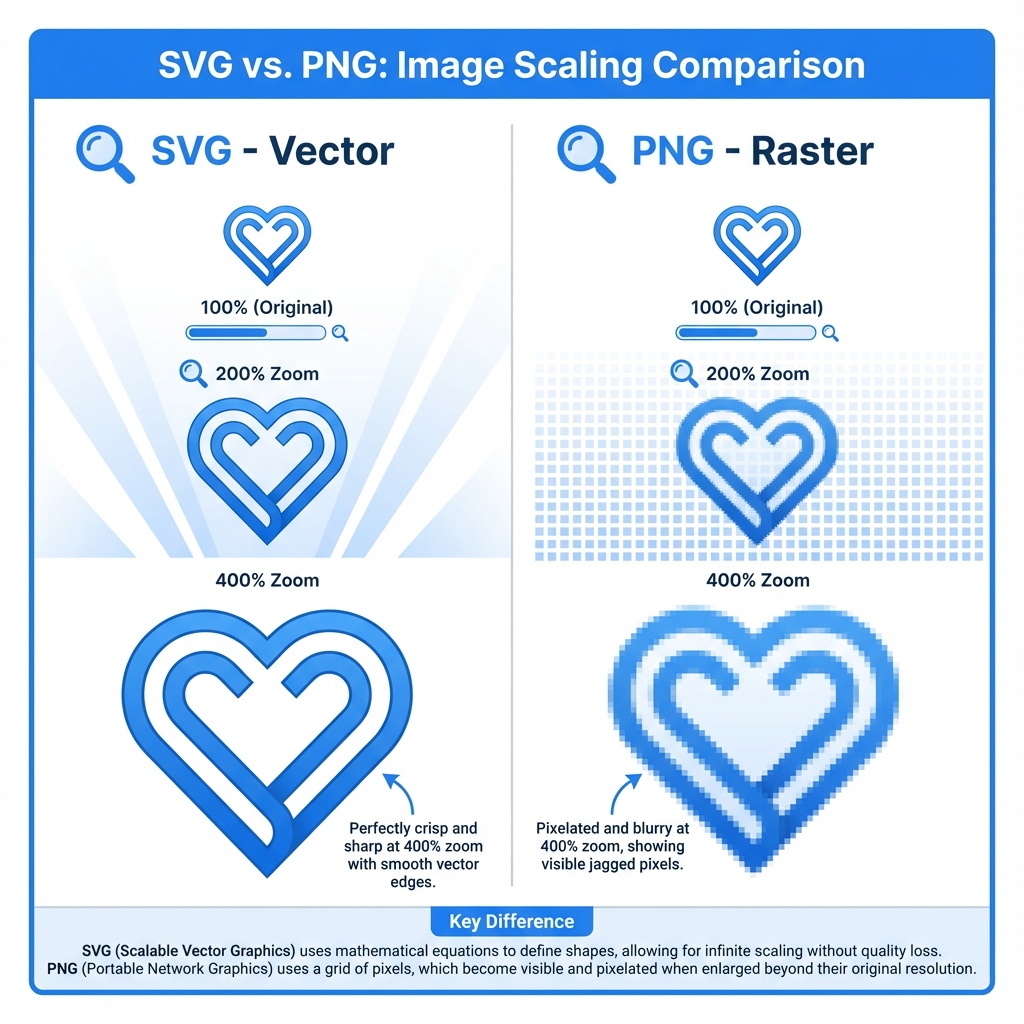
SVG is a vector format, so it is natural to expect a perfect PNG after conversion. In practice, a PNG is still a grid of pixels. Once the SVG is rasterized, the converter has to decide exactly how many pixels to create, where each stroke lands, how text is shaped, and whether the final bitmap will later be scaled by the browser or another app.
Most blurry SVG to PNG results come from one of five issues: the exported PNG is too small, the PNG is displayed at a different size than it was exported, the SVG has an incomplete viewBox, strokes sit on fractional pixels, or fonts are rendered differently during export.
This guide gives you a practical checklist for fixing the problem without guessing.
Start With the Display Size
The first question is not "what size is the SVG?" It is "where will the PNG be used?"
If the final image appears at 400 x 400 CSS pixels on a website, export at least 400 x 400 pixels. For high-density displays, export 800 x 800 for 2x or 1200 x 1200 for 3x. A 256 px PNG stretched to 512 px will always look softer, even if the original SVG was perfect.
Use this rule:
| Final use | Recommended PNG export |
|---|---|
| 24 px toolbar icon | 24, 48, and 72 px variants |
| 64 px app icon | 64, 128, 256, and 512 px variants |
| 400 px website illustration | 800 px if it may appear on retina screens |
| 1200 px slide graphic | 1200-2400 px depending on projector or print use |
If you only need one file, choose the largest real display size you expect. Do not export a tiny PNG and rely on CSS, PowerPoint, Figma, or a CMS to enlarge it later.
Check Whether the PNG Is Being Scaled After Export
A PNG can be sharp at its native size and blurry only after placement. This is common when the HTML says:
<img src="logo.png" width="160" height="160" />but the actual file is only 80 x 80 pixels. The browser must invent pixels, so edges become soft.
To check this quickly:
- Open the PNG file directly in a browser.
- Inspect its natural width and height.
- Compare that with the size used in your page, app, slide, or document.
- If the display size is larger, export a larger PNG.
For web pages, avoid using one small PNG everywhere. Use srcset or multiple export sizes when the same icon appears in different contexts.
Fix Missing or Misleading viewBox Values
The viewBox tells the renderer what part of the SVG coordinate system should be visible. If the SVG only has width and height, or if the viewBox crops the artwork tightly, some converters may produce unexpected scaling.
A healthy SVG often starts like this:
<svg width="512" height="512" viewBox="0 0 512 512" xmlns="http://www.w3.org/2000/svg">Look for these problems:
- No
viewBox - A
viewBoxthat does not match the artwork bounds - Extremely large coordinate systems, such as
viewBox="0 0 100000 100000" - Artwork positioned outside the visible area
If you export from Figma, Illustrator, Sketch, or Inkscape, use the option that preserves the artboard or frame bounds. Do not export a random selection if you need consistent PNG dimensions.
Watch Fractional Pixels and Thin Strokes
SVG can draw a line at x="10.5" with a 1px stroke. That can be intentional because a 1 px stroke centered on a half pixel may align crisply on a standard screen. But when the SVG is scaled during rasterization, the same geometry may land between pixels and create anti-aliasing blur.
This matters most for:
- 1 px interface icons
- Simple line icons
- Grid graphics
- Small text labels
- QR-like geometric patterns
If the output is slightly fuzzy, try these fixes:
- Export at exactly 1x, 2x, or 3x of the design size.
- Use even dimensions for square icons when possible.
- Avoid scaling a 24 px icon to 25 px or 31 px.
- Convert very thin strokes to filled shapes if the icon must be pixel-perfect.
- Test the actual output size, not only a zoomed preview.
Anti-aliasing is not always bad. Smooth edges rely on it. The problem is uncontrolled anti-aliasing caused by unexpected scaling.
Text Can Become Softer Than Shapes
Text in SVG is different from paths. If the font is available, the renderer must shape the text, apply hinting, and rasterize the glyphs. If the font is missing, it may substitute another font. Both situations can change sharpness.
For production exports, especially logos and badges, consider converting text to outlines in your design tool before exporting SVG. That makes the lettering behave like vector shapes instead of depending on the viewer's installed fonts.
Use live text when:
- The SVG is part of a web page and should use real text
- Accessibility or copy/paste matters
- The font is loaded reliably by CSS
Use outlined text when:
- The PNG must match a brand asset exactly
- The SVG will be converted by different tools
- The file includes a display font that may not exist on the user's machine
Use the Right Background and Format
Sometimes "blurry" is really a contrast problem. A semi-transparent icon exported onto a background that does not match the final page can look washed out. A thin gray icon on a white background may appear softer than the same icon on a dark background.
For icons and logos, PNG is usually the safest bitmap target because it supports full transparency. For photographs or soft illustrations, JPG or WebP may be smaller, but they can introduce compression artifacts around text and sharp edges.
If your PNG will sit on unknown backgrounds, export with a transparent background. If it must be used in software that does not handle alpha well, export a separate version with the exact intended background color.
Recommended SVG to PNG Export Workflow
Use this workflow when you want predictable output:
- Decide the final display size before converting.
- Export at the final size, plus
2xif the image will appear on high-density screens. - Confirm the SVG has a correct
viewBox. - Keep the artboard/frame dimensions consistent.
- Convert text to outlines for brand-critical graphics.
- Use transparent PNG for icons, logos, and UI assets.
- View the final PNG at 100%, not zoomed in or scaled by a preview app.
When using svg2img.cc, set the output width and height deliberately instead of accepting a random default. For icons, test one file first, confirm it looks sharp at the actual display size, then batch convert the remaining files with the same settings.
Quick Diagnosis Checklist
If your SVG to PNG export looks blurry, ask:
- Is the PNG smaller than the place where it is displayed?
- Is the browser, CMS, or slide deck scaling it?
- Does the SVG have a valid
viewBox? - Are thin strokes landing on fractional pixels?
- Is text still live and dependent on a missing font?
- Are you judging the file at 100% zoom?
- Is the background reducing contrast?
Fixing blurry PNG output is usually not about finding a "better converter." It is about controlling rasterization: size, bounds, alignment, fonts, and final placement. Once those are deliberate, SVG to PNG conversion can produce crisp, reliable images for websites, apps, slides, and documents.
Put the guide into practice
Convert SVG files locally in your browser without uploading them.
Open converter