PNG, JPG, WebP, or AVIF: How to Choose the Right Image Format
Choose PNG, JPG, WebP, or AVIF with a practical framework for logos, screenshots, photos, transparent images, website assets, and compatibility-sensitive workflows.
On this page
The best image format depends on what the image contains and where it will be used. A logo, a screenshot, a product photo, and a social media preview do not have the same requirements. Choosing the wrong format can make a sharp graphic blurry, make a photo unnecessarily huge, remove transparency, or break compatibility in older software.
This guide focuses on practical decisions: when to use PNG, when JPG is enough, when WebP is the better web option, and when AVIF is worth the extra compatibility planning.
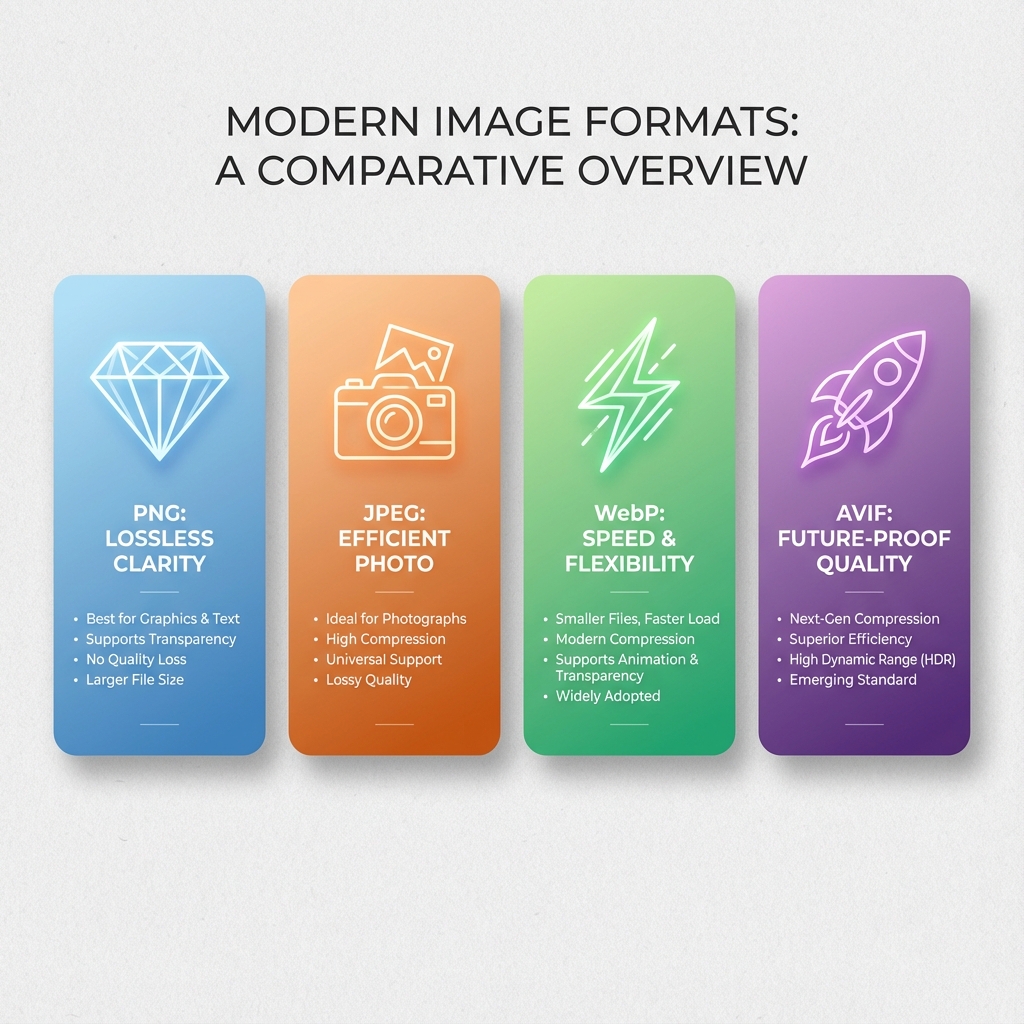
The Fast Decision Table
| Use case | Best first choice | Why |
|---|---|---|
| Logo with transparent background | PNG or SVG | Sharp edges and alpha transparency |
| Website photo | WebP, with JPG fallback if needed | Smaller than JPG with good browser support |
| Maximum compression for modern browsers | AVIF | Excellent quality-to-size ratio |
| Screenshot with text | PNG | Preserves text and UI edges |
| Email image | JPG or PNG | Email client support is conservative |
| App icon export | PNG | Required by many platforms at exact sizes |
| Social sharing image | JPG or PNG | Predictable platform support |
| Decorative web illustration | WebP or PNG | Depends on transparency and edge detail |
If you remember one rule, make it this: use PNG for sharp graphics and transparency, JPG for simple compatibility with photos, WebP for modern web delivery, and AVIF when file size matters enough to manage fallbacks.
PNG: Best for Sharp Edges and Transparency
PNG is lossless. It keeps the pixel data without introducing compression artifacts, which makes it ideal for images where small details matter.
Use PNG for:
- Logos and brand marks
- UI icons
- Screenshots
- Diagrams
- Text-heavy graphics
- Transparent backgrounds
- App icons and favicon source exports
PNG is not always small. A large photo saved as PNG can be several times larger than a JPG or WebP with no visible benefit. That is because PNG is not designed to compress complex photographic gradients aggressively.
Choose PNG when accuracy matters more than file size. If the image contains flat colors, hard edges, line art, text, or transparency, PNG is usually safe.
JPG: Best for Universal Photo Compatibility
JPG is lossy, which means it throws away some detail to reduce file size. That is a problem for logos and text, but it works well for photos because photographic detail is naturally complex and continuous.
Use JPG for:
- Product photos
- Blog hero photos
- Real-world scenes
- Portraits
- Background photos
- Email-safe image delivery
Avoid JPG for:
- Transparent images
- Screenshots with small text
- Icons
- Charts with thin lines
- Graphics that will be edited and saved repeatedly
JPG has the strongest compatibility. If you need an image to work in old CMS systems, office documents, email clients, or social platforms, JPG is often the least risky photo format.
WebP: Best Default for Modern Websites
WebP supports lossy compression, lossless compression, transparency, and animation. For many websites, it is the practical modern default because it can replace JPG, PNG, and GIF in many cases while reducing file size.
Use WebP for:
- Website photos
- Blog images
- Product thumbnails
- Decorative illustrations
- Transparent web graphics where PNG is too large
- Animated assets that would otherwise be GIF
WebP is widely supported in current browsers. The main reason not to use it is not quality; it is workflow compatibility. Some design tools, CMS systems, older browsers, email clients, or upload forms may still prefer JPG or PNG.
For public websites, a common pattern is:
AVIF first, WebP second, JPG or PNG fallbackBut if you want one modern format without overcomplicating the pipeline, WebP is often the easiest upgrade.
AVIF: Best Compression, More Planning
AVIF can produce very small files at high visual quality, especially for photos and large web images. It is useful when performance is critical and you can provide fallbacks.
Use AVIF for:
- Large photos on performance-sensitive pages
- Mobile-first websites where bandwidth matters
- Image-heavy landing pages
- Progressive enhancement with fallback formats
Be careful with AVIF when:
- Users may download and edit the image in common apps
- You need broad compatibility outside browsers
- Your build pipeline cannot generate fallbacks
- Fast encoding is important
AVIF should not be treated as a universal replacement for everything. It is excellent as the first choice inside a controlled web delivery strategy, but less convenient as a general asset exchange format.
How SVG Fits Into This Decision
SVG is not a bitmap format like PNG, JPG, WebP, or AVIF. It is vector code. Keep SVG when the image is a simple icon, logo, diagram, or illustration that should scale cleanly and remain editable.
Convert SVG to PNG when:
- A platform does not accept SVG
- You need an app icon at exact pixel sizes
- You are preparing assets for slides or documents
- You need a bitmap preview for a CMS
- You want to avoid SVG rendering differences in a target environment
Convert SVG to JPG only when you are sure transparency is not needed and the final background should be solid. Convert SVG to WebP when web delivery file size matters and the target environment supports it.
Practical Examples
Company logo for a website: Keep SVG for the website header. Export PNG for social platforms, documents, and systems that reject SVG. Do not use JPG because it has no transparency and may create artifacts around edges.
Screenshot for documentation: Use PNG if the screenshot contains text, UI chrome, or code. Use WebP only if the page size matters and the compression does not make text fuzzy.
Product photo gallery: Use WebP as the main website format. Consider AVIF for large images if you can serve fallbacks. Keep JPG as an export or compatibility version.
Icon pack for a mobile app: Export PNG at exact sizes. Keep the SVG source for future edits. Do not rely on one large PNG scaled down by the app.
Blog illustration with transparency: Try WebP if browser delivery is the only target. Use PNG if the image must be reused in documents, design tools, or platforms with uncertain WebP support.
Recommended Workflow
For most web projects:
- Keep original source files: SVG, design files, or high-resolution photos.
- Export PNG for sharp transparent graphics.
- Export JPG or WebP for photos.
- Add AVIF only when performance gains justify fallback handling.
- Test the actual final context: browser, CMS, email, document, or app.
When using svg2img.cc, choose the output format based on the destination rather than habit. PNG is the safest target for transparent SVG logos and icons. JPG is useful for solid-background previews. WebP is useful when the final image will be served on the web and file size matters.
The right format is the one that preserves the image qualities your users will notice while staying compatible with the place where the image must work.
Put the guide into practice
Convert SVG files locally in your browser without uploading them.
Open converter